
Paper Jams in the Feeder
Check the paper jam location on the screen, and follow the procedure below to remove the original.
1
Remove any originals from the original supply tray.
imageRUNNER 2745i
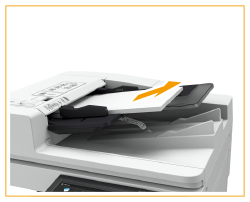
imageRUNNER 2730i / 2725i
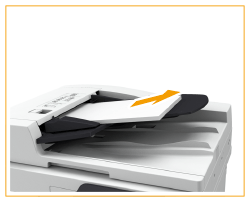
2
Check whether an original is jammed in the feeder cover.
| Pull the lever to open the feeder cover. imageRUNNER 2745i 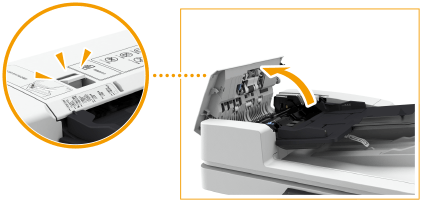 imageRUNNER 2730i / 2725i 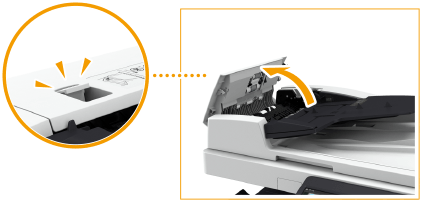 |
 | If an original is jammed, gently pull it out in the direction of the arrow. imageRUNNER 2745i 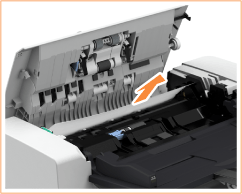 imageRUNNER 2730i / 2725i 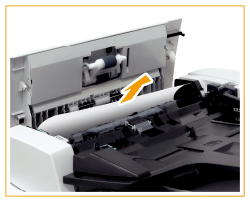 |
3
Check whether an original is jammed in the original output tray.
| Turn the green knob counterclockwise. imageRUNNER 2745i 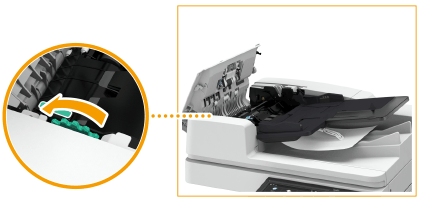 imageRUNNER 2730i / 2725i 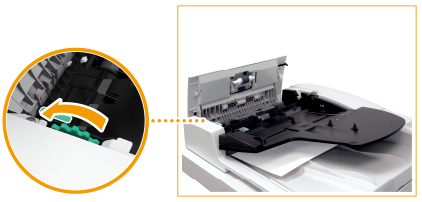 |
| If an original is jammed, gently pull it out in the direction of the arrow. imageRUNNER 2745i 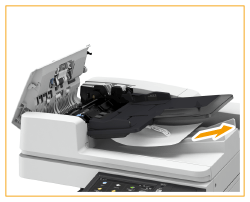 imageRUNNER 2730i / 2725i 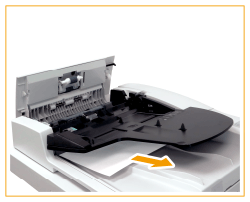 |
4
Check whether an original is jammed inside the inner cover of the feeder.
| Open the inner cover of the feeder. imageRUNNER 2745i 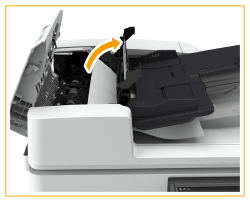 imageRUNNER 2730i / 2725i 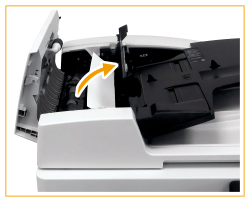 |
| If an original is jammed, gently pull it out in the direction of the arrow. imageRUNNER 2745i 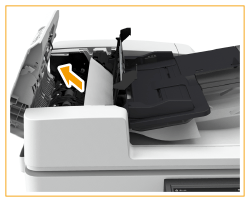 imageRUNNER 2730i / 2725i 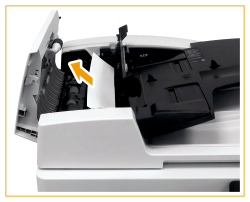 |
 | Close the inner cover of the feeder. |
5
After removing all jammed originals, close the feeder cover.
6
Lift up the feeder, and check whether there is a jammed original.
| Lift up the feeder, and check the position indicated by  . .imageRUNNER 2745i 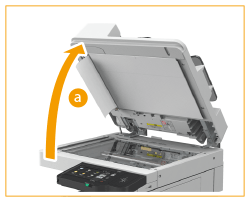 imageRUNNER 2730i / 2725i 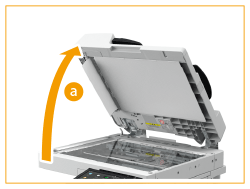 |
| If an original is jammed, gently pull it out in the direction of the arrow. imageRUNNER 2745i 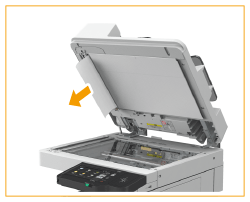 imageRUNNER 2730i / 2725i 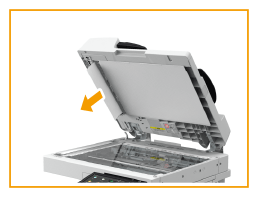 |
7
Return the feeder to its original position.
Continue following the instructions on the screen to proceed with the interrupted operation or continue clearing paper jams.
 |
When closing the feeder, take care that your eyes are not exposed to light emitted through the platen glass. |