Changes to Destination Registration
 (Ver. 3.12-)
Renaming of Items Displayed in the One-Touch Button Registration Screen
When you register a destination for a one-touch button or register a new destination, some of the items displayed in the operation panel and remote UI screen are renamed.
Control Panel
Current name | New name |
<One-Touch Name> | <One-Touch Button Name> |
Remote UI
Current name | New name |
[Button Name] | [One-Touch Button Name] |
[One-Touch Name] | [One-Touch Button Name] |
 (Ver. 3.18-)
Adding of Items Displayed on the Destination Registration Screen when Sending Data to the File Server or Advanced Box
When registering a destination by selecting <File> in the <Dest./Fwd. Settings>  <Register Destinations> <Register New Destination>, you can now configure <Sorting Folder>.
<Register Destinations> <Register New Destination>, you can now configure <Sorting Folder>.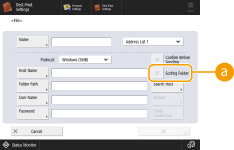
 <Sorting Folder>
When this checkbox is selected, each time you send a file, a new folder is created in the folder specified in <Folder Path>, and the file is stored in that folder.
When you send a file, you can create a new folder and store the file in that folder at the same time.
* This item is displayed only when <Windows (SMB)> or <FTP> is selected in <Protocol>.
 When the checkbox is selected
On the send screen, press  (Start) to display the following screen.
(Start) to display the following screen.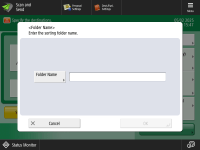
Press <Folder Name>, enter the name of the folder you want to create, and press <OK> <OK>.
<OK>.If you specify multiple destinations, a sending error occurs.
If the entered folder already exists, the file is stored to that folder.
 (Ver. 3.22-)
Adding an SFTP Server to Destination Registration When Sending Data to a File Server
When registering a destination by selecting <File> in the <Dest./Fwd. Settings> <Register Destinations> <Register New Destination>, you can now register an SFTP server in the <FTP><Host Name>.
<Register Destinations> <Register New Destination>, you can now register an SFTP server in the <FTP><Host Name>.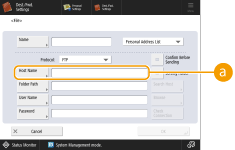
<Host Name>
When registering an SFTP server, select <FTP> in <Protocol>, and then enter <Host Name> as follows.
Example:
To save to the Shared Space: sftp://<IP address or host name>/share
To save to the Personal Space: sftp://<IP address or host name>/users