
Basic Screens on the Touch Panel Display
This section describes the various screens displayed on the touch panel display.
|
The <Status Monitor> screen is displayed when starting up or restoring with the default settings. If you want to change the screen displayed at startup or restoration, see <Default Screen after Startup/Restoration>. |
<Home> Screen
The <Home> screen is displayed when you press  . The <Home> screen displays a list of function buttons and acts as the entrance to various functions. Items Displayed on the <Home> Screen
. The <Home> screen displays a list of function buttons and acts as the entrance to various functions. Items Displayed on the <Home> Screen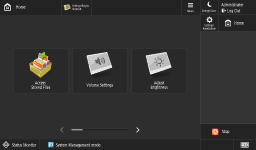
<Settings/Registration> Screen
Press  (Settings/Registration) to display the <Settings/Registration> screen. Press this key first to make changes for each setting, such as paper settings, display settings, and network settings.
(Settings/Registration) to display the <Settings/Registration> screen. Press this key first to make changes for each setting, such as paper settings, display settings, and network settings. 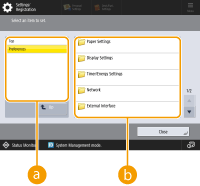
 Current menu level
You can check which level is being displayed for the entire Settings/Registration menu.
 Setting item list
Setting items that belong to the current menu level are displayed in a list.

When there is no menu under the lower level, the setting screen is displayed.
<Status Monitor> Screen
When you press  (Status Monitor), the <Status Monitor> screen is displayed. You can check not only the operating status, but also the detailed information of the paper in the paper source and the information on the main unit such as the remaining amount of toner.
(Status Monitor), the <Status Monitor> screen is displayed. You can check not only the operating status, but also the detailed information of the paper in the paper source and the information on the main unit such as the remaining amount of toner.You can also change the default screen of <Status Monitor>. <Default Screen (Status Monitor)>
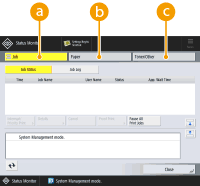
<Job>
The current status or log of the selected item is displayed. You can cancel printing on this screen.
<Paper>
You can check the detailed information of the paper. You can also register or set the type of paper to be loaded in the paper source such as a paper drawer.
Paper Type Management Settings
Paper Type Management Settings
 <Toner/Other>
You can check the status of the machine, such as the remaining amount of toner and memory levels.
Error Screen
In some cases when an error occurs, instructions on how to respond to the error are displayed. Follow the on-screen instructions to solve the problem. Countermeasures for Each Message
Example: When toner runs out
Example: When toner runs out
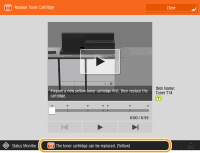 (Items shown on the screen may differ depending on your model and options.) |
TIPS |
Press  displayed on the <Home> screen and the Basic Features screen to customize the screen such as rearranging buttons or creating a shortcut key. Customizing the Touch Panel Display displayed on the <Home> screen and the Basic Features screen to customize the screen such as rearranging buttons or creating a shortcut key. Customizing the Touch Panel Display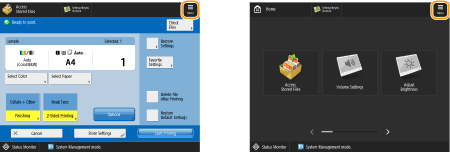 You can change settings regarding the screen display, such as which screen appears immediately after turning ON the machine, and whether the message appears for remaining paper and toner. <Display Settings> You can set the screen to be displayed when a certain amount of time has passed without operation. <Function After Auto Reset> |
 |
 indicates that data on the storage device is encrypted. Managing Storage Device Data indicates that data on the storage device is encrypted. Managing Storage Device Data |