Copying Multiple Passports onto One Sheet
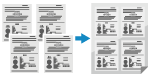 | You can use the Passport Copy function to copy multiple passports together onto one sheet of paper. This can be quickly performed from the [Home] screen on the control panel. |
1
Place a passport on the platen glass.
1 | Open the feeder or platen cover. 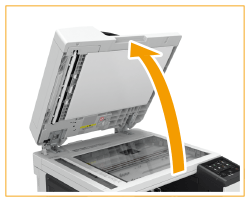 |
2 | Place the page to be scanned face down while aligning the corner of the passport with the top left corner of the platen glass, as shown. 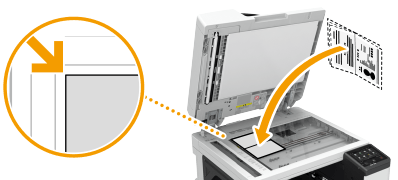 |
3 | Gently close the feeder or the platen cover. |
2
On the control panel, press [Passport Copy] in the [Home] screen. [Home] Screen
The [Passport Copy] screen is displayed.
3
Select a combination of the number of passports and whether to use 2-sided printing.
[2 on 1 (2-Sided)]
Combines two passports onto one side of a sheet of paper by copying with 2-sided printing. Copies four passports onto both sides of a sheet of paper with 2-sided printing.
[4 on 1 (2-Sided)]
Combines four passports onto one side of a sheet of paper by copying with 2-sided printing. Copies eight passports onto both sides of a sheet of paper with 2-sided printing.
[2 on 1]
Combines two passports onto one side of a sheet of paper.
[4 on 1]
Combines four passports onto one side of a sheet of paper.
4
Select the paper source with the loaded paper to use for copying.
The copy screen is displayed.
5
Set the number of copies.

Press [Number of Copies], use the numeric keys to enter the number of copies, and then press [Close].
* When you use Passport Copy to make copies, the copy ratio is set automatically according to the size of the paper used for copying and the number of passports to combine. You can also press [Copy Ratio] to change the copy ratio manually.
* You can press [Paper] to change the paper source (paper used for copying) selected in 4.
6
Select color mode as needed.
7
Configure the other copy settings, as needed. Additional Copying Features
You can adjust the density and image quality.
You can change the number of passports to combine (N on 1) and the 2-sided copy settings selected in 3.
8
Press [Start].
The first passport is scanned.
To copy the first passport in black and white, press [Select Color]  [Black & White]. To copy in color, press [Select Color] [Full Color].
[Black & White]. To copy in color, press [Select Color] [Full Color].9
When [Scan the next original. After scanning, press [Start Printing].] is displayed, place the next passport on the platen glass, and press [Scan Next Original].

The next passport is scanned, and the same screen is displayed.
Repeat this process until scanning of all passports is completed.
Repeat this process until scanning of all passports is completed.
You can select the color mode (Black & White or Color) for each passport. To copy the next passport in black and white, press [Select Color] [Black & White]. To copy in color, press [Select Color] [Full Color].
[Black & White]. To copy in color, press [Select Color] [Full Color].You can also press [Density] and [Color Balance] to change the settings for each passport.
10
Press [Start Printing].
The scanned passports are printed.
To cancel copying, press [Cancel] [Yes]. Canceling Copy Operations
[Yes]. Canceling Copy OperationsUse [Status Monitor] to view the copy job status and log. Viewing the Print Job Status and Log