
Selecting the Network Connection Method
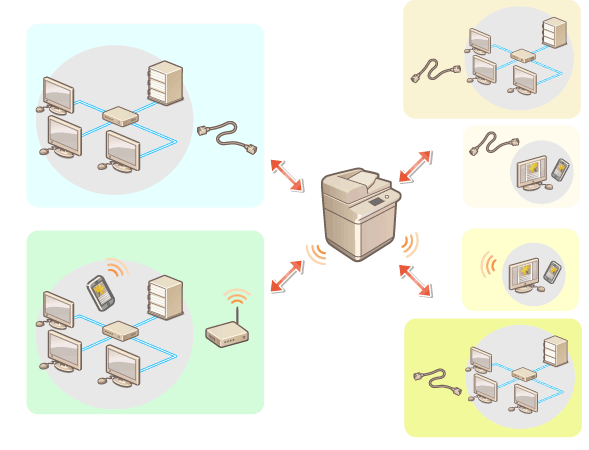
You can select the method for connecting the machine to computers, etc. The following connection methods are available.
Wired LAN only
Wireless LAN only
Simultaneous wired LAN and wireless LAN
Simultaneous wired LAN and another wired LAN
You can use the machine while connected to two different networks at the same time, such as connecting to a wired and wireless LAN or a wired LAN and another wired LAN via a USB-LAN adapter.
On the machine and in the User's Guide, the primary line used in a dual network is called the "main line," and the secondary line is called the "sub line."
On the machine and in the User's Guide, the primary line used in a dual network is called the "main line," and the secondary line is called the "sub line."
|
To use Wireless LAN, the required wireless LAN connection must be installed. System Options |
1
Press  (Settings/Registration).
(Settings/Registration).2
Press <Preferences>  <Network> <Select Interface>.
<Network> <Select Interface>.3
Select the network connection method.
Connection method | <Main Line> | <Sub Line> | |
Wired LAN only | Wired LAN (main line) only | <Wired LAN> | <Off> |
Wireless LAN only | Wireless LAN (main line) only | <Wireless LAN> | <Off> |
Connecting to a wired LAN and wireless LAN at the same time*1 | Wired LAN (main line) and wireless LAN (sub line) | <Wired LAN> | <Wireless LAN> |
Wired LAN (sub line) and wireless LAN (main line)*2 | <Wireless LAN> | <Wired LAN> | |
Connecting to a wired LAN and other wired LAN at the same time | Wired LAN (main line) and wired LAN (sub line)*3 | <Wired LAN> | <Wired LAN> |
*1 If you change the settings from <Main Line> to <Sub Line> or from <Sub Line> to <Main Line>, the previous wireless LAN connection settings will be cleared, so you must reconnect to the wireless LAN. *2 The wired LAN connected to the LAN port on the machine becomes the sub line. The wired LAN connected to the machine via a USB-LAN adapter cannot connect using the sub line. *3 The wired LAN connected to the LAN port on the machine becomes the main line, and the wired LAN connected to the machine via a USB-LAN adapter becomes the sub line. |
4
Press <OK>.
 |
When using a sub line, see Cautions When Using the Sub Line. When <Main Line> is set to <Wired LAN> and <Sub Line> is set to a setting other than <Off>Set <Sleep Mode Energy Use> to <High>. <Sleep Mode Energy Use> |