Print Screen
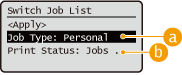
When you select <Print> on the <Home> screen on the control panel, the <Switch Job List> screen is displayed. On this screen, you can filter held documents according to the job type and the print status.
When you select <Apply> on the <Switch Job List> screen, you can select documents on the <Select Job> screen. You can print or delete the selected documents.
When you select <Apply> on the <Switch Job List> screen, you can select documents on the <Select Job> screen. You can print or delete the selected documents.
<Switch Job List> screen
 <Job Type>
Select the type of the documents displayed on the list.
<Personal>: Displays the documents of a log in user
<Shared>: Displays the documents that are held under specific conditions
*The documents under <Shared> are displayed for every user and can be printed by every user.
*The documents under <Shared> are displayed for every user and can be printed by every user.
<Group>: Displays the documents under the same department ID as that of a login user.

<Group> is available only when using IC card authentication.
 <Print Status>
Select the job status that is displayed on the list from <Jobs to Be Printed> and <Jobs Printed>.
<Select Job> screen
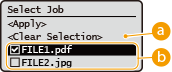
<Select All>/<Clear Selection>
If you press <Select All> when no document is selected, all documents in the list are selected.
If you press <Clear Selection> when documents are selected, the entire selection is canceled.
List of documents
The following documents are displayed in the list.
Held
Secured printed
Encrypted secured printed
When you select a document, a check mark is added.
Up to 100 documents can be selected at the same time.
<Select Operation> screen
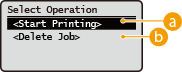
<Start Printing>
Starts printing selected documents.
<Delete Job>
Deletes selected documents.