
Registering Application Licenses
Cloud Connector requires a separate license to be registered for each application*1.
For information on purchasing licenses, contact your dealer or service representative.
*1 Cloud Service Applications, Email (Print and Scan)
Registering a New License
Prepare the license access number you have purchased, and follow the procedure below to register it.
1
Log in to the multifunction printer with administrator privileges.
For details on logging in, see the user's guide for your model on the online manual site.
2
Press [ ] (Settings/Registration).
] (Settings/Registration).3
Press [Management Settings]  [License/Other] [Register/Update Software] [Install Applications/Options].
[License/Other] [Register/Update Software] [Install Applications/Options].4
Press [License Access Number], and enter the license access number.
5
Confirm the entered number, and press [Enable].
The button for the application is displayed on the Home screen of the multifunction printer.
Updating a License
To update a license that has expired or is nearing expiration, purchase a license from your dealer and enter the license access number with the same procedure as for registering a new license.
|
A warning starts being displayed on the login screen of the application one month before the license expiration date. |
Checking the Status and Expiration Date
1
Start the Remote UI and log in with System Manager Mode.
For details on starting the Remote UI, see the user's guide for your model on the online manual site.
2
On the Portal screen of the Remote UI, click [Cloud Connector Configuration].
3
Click [License information].
4
Check the displayed information.
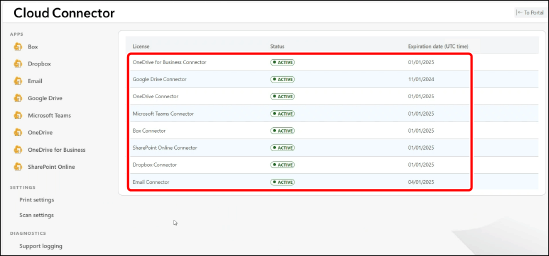
Check the status and expiration date of the license for each application.