Removing Printed Media from the STM
You can retrieve the printed media when the stack tray inside the STM is full or after printing is finished. If multiple STMs are connected, you can also retrieve the printed media while printing.
1
Press the eject button of the STM control panel once.
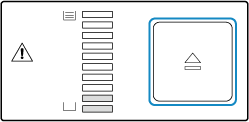
Normally, press the eject button once. The light on the button slowly flashes green, and the printed media is output when stacking of the last set is complete.
* If multiple STMs are connected, press the eject button that is lit green.
To eject the printed media immediately
Press the eject button twice. The light on the button quickly flashes green and the printed media immediately ejected when printing of the current page is complete.
2
Open the front door.
3
Pull out the dolly.
The stack tray and dolly are pulled out from the STM together.
4
Remove the printed media.
5
Return the dolly to the STM.
The stack tray automatically returns to the position for receiving the output media.
6
Close the front door.
NOTE
The timing for the printed media reaching the stacking limit differs according to the stacking settings. If the alignment of the prints is poor or the printed media is damaged, you can use the Settings Editor to adjust the vertical adjustment unit and horizontal adjustment unit to improve the alignment. For information on how the STM aligns and stacks printed media, see the PRISMAsync Print Server for iX1700 Operation guide.