Loading Paper in Long Sheet Feeding Tray-B (Option)
When you use Long Sheet paper, load the paper in the Long Sheet Feeding Tray-B.
IMPORTANT
For details on the paper that can be used, see the following:
Usable Paper
Usable Paper
Using curled paper can cause paper jams or printing errors.
Be sure to configure the paper type settings correctly. Specifying the Paper Size and Type
* The image quality may be degraded if the settings are not configured properly, particularly when you use special paper such as Heavy paper. In addition, the fixing assembly may become dirty or a paper jam may occur, and repair by your service representative may be required.
* The image quality may be degraded if the settings are not configured properly, particularly when you use special paper such as Heavy paper. In addition, the fixing assembly may become dirty or a paper jam may occur, and repair by your service representative may be required.
You cannot staple paper, fold paper, or use other finishing functions.
You cannot print on Long Sheet paper when [Settings/Registration]  [Function Settings] [Printer] [Printer Settings] [Custom Settings] [Print Quality] [Resolution] is set to [1200 dpi].
[Function Settings] [Printer] [Printer Settings] [Custom Settings] [Print Quality] [Resolution] is set to [1200 dpi].Install the optional Long Sheet output tray or the finisher to prevent paper from falling out of the output tray. Long Sheet Feeding Tray-B and Long Sheet Catch Tray-D
1
Attach the Long Sheet feeding tray to the multi-purpose tray.
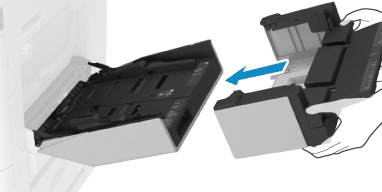
2
Slide the paper guides to the outside.
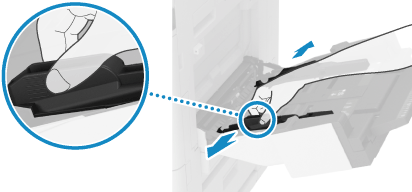
Set the width of the paper guides slightly wider than the width of the paper.
3
Load the paper with the print side face down.
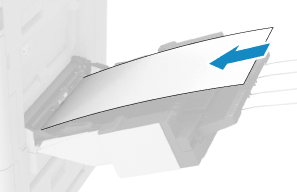
Insert the paper until the edge of the paper is against the paper tray.
You can load up to 10 sheets of paper with a horizontal length from 457.3 mm to 900 mm (18" to 35 1/2"). When you use paper wider than this, load one sheet at a time.
* Some types of paper can only be loaded one sheet at a time, regardless of the size.
* Some types of paper can only be loaded one sheet at a time, regardless of the size.
If you load more paper than the load limit, a misfeed or paper jam may occur.
When You Want to Improve the Print Precision
You can load paper correctly by aligning the paper edges with the markings on the Long Sheet feeding tray.
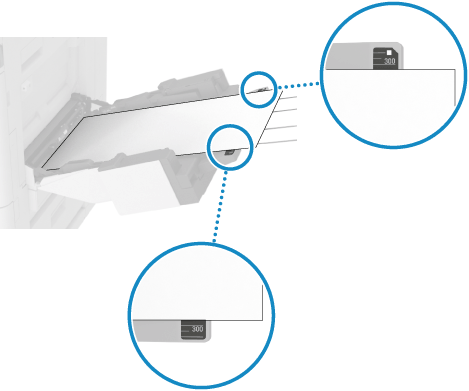
Make sure that the gap at the near edge of the paper is approximately the same size as the one at the far edge.
Make sure that the edges of the paper are parallel to the paper guides.
4
Align the paper guides with the width of the paper.
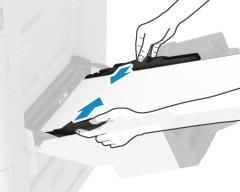
Use both hands to position the paper guides so that they match the width of the paper exactly.
Paper guides that are aligned and are too loose or too tight can cause misfeeds or a paper jam.
5
Set the paper size and type. Setting the Paper Size and Type for the Multi-purpose Tray
By default, when the machine detects paper loaded in the multi-purpose tray, the screen for setting the paper is displayed on the control panel. Set the paper size and type each time you load paper.
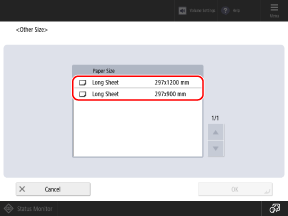
Press [Change Paper Size] [Other Size] and select the size of the loaded Long Sheet paper.
[Other Size] and select the size of the loaded Long Sheet paper.