
<Management Settings>
<Use Password Strength Indicator> (Ver. 2.06-)
 (Settings/Register)
  <Management Settings> <User Management> <Authentication Management> <Keyboard Authentication>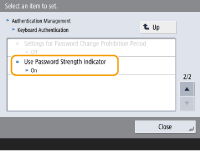
You can now select whether to display a meter indicating the password strength on the screen for entering a password when registering or editing user information.
|
When <On> is selected, the password strength can be adjusted to one of five levels. If the password strength is set to 1, there are no restrictions on password settings. If the password strength is set to 2 or higher, you will not be able to set a password with a strength lower than you set. If the entered password does not meet the minimum character length, an error message will be displayed. |
Item | Setting Description | DeviceAdmin | NetworkAdmin | Can be set in Remote UI | Import All Function | Name of Item When Exporting with the Remote UI |
<Use Password Strength Indicator> | <On>, <Off> When <On> is selected: <Required Password Strength Level>: <Decrease>, <Increase> (5 levels) | No | No | Yes | C | Settings/Registration Basic Information |
<Always Change Invalid Password When Logging In> (Ver. 2.06-)
(Settings/Register) <Management Settings> <Security Settings> <Authentication/Password Settings> <Password Settings>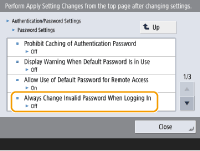
You can now select whether to prevent the administrator from logging in to the machine with the default user name and password.
|
When any of the <Password Settings Policy> items in <Security Policy Settings> are enabled, this item will be set to <On>. |
Item | Setting Description | DeviceAdmin | NetworkAdmin | Can be set in Remote UI | Import All Function | Name of Item When Exporting with the Remote UI |
<Always Change Invalid Password When Logging In> | <On>, <Off> | No | No | Yes | C | Settings/Registration Basic Information |