Configuring the Initial Settings for Remote UI, Fax, and Scan
Access the IP address of the machine from a Web browser on a computer, and configure the initial settings for Remote UI, fax, and scan.
For details on supported models, see the following: Supported Functions and Options
For details on supported models, see the following: Supported Functions and Options
Required Preparations |
Check the operating environment of Remote UI. Supported Environment Connect the computer you are using to operate Remote UI to the machine over a network. Setting Up the Network Check the IP address of the machine. Checking the Network Status and Settings |
1
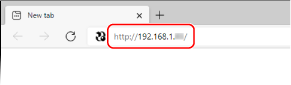
From a Web browser on a computer, access the following URL.
http://<IP address of the machine>/ |
The [Password Settings] screen is displayed.
This screen is displayed only if you access it within 15 minutes of connecting the machine to the network.
If the Remote UI login screen is displayed, log in to Remote UI in Administrator Mode.
If you have not set the Remote UI password, set the password on the machine. Setting the ID and PIN for the Administrator
If you have not set the Remote UI password, set the password on the machine. Setting the ID and PIN for the Administrator
When entering an IPv6 address, enclose the IP address in brackets [ ].
Example:
http://[fe80:2e9e:fcff:fe4e:dbce]/
http://[fe80:2e9e:fcff:fe4e:dbce]/
 If the Remote UI Login Screen Is Not Displayed
When a message such as [Cannot access Remote UI.] is displayed and the login screen is not displayed, see the following:
Cannot Access Remote UI or Send Function Setting Tool
Cannot Access Remote UI or Send Function Setting Tool
2
Set the password required for login by following the instructions on the screen, and click [OK].
The [Initial Settings] screen is displayed.
* If the screen is not displayed, click [Initial Settings] on the Portal page.
3
Click [Fax Settings], and configure the fax settings.
If you are not configuring the fax settings, proceed to Step 4.
[Fax Setup Guide]
Configure the settings required for using the fax function.
1 | Click [Fax Setup Guide]. The [Enter Registration Information] screen is displayed. |
2 | Enter the machine's fax number and unit name (name or company name), and click [Next]. |
3 | Answer the questions displayed on the [RX Mode Settings] screen by selecting [Yes] or [No]. |
4 | Check the selected RX mode, and click [Next]. The [Connect Telephone Line] screen is displayed. |
5 | Connect the supplied telephone cord to the telephone line jack (LINE) on the machine and the telephone line connector on the wall. 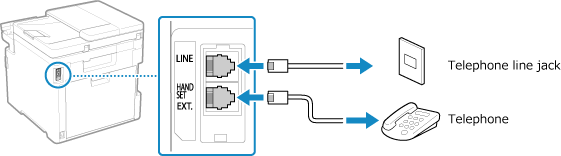 Connect the telephone to the external telephone jack (HAND SET/EXT.) on the machine. When connecting a telephone with fax function, be sure to disable the fax auto receive setting on the telephone. Depending on the type of telephone connected to it, the machine may not be able to send or receive faxes properly. |
6 | Click [Done]. |
7 | Click [End]. The [Fax Settings] screen is displayed. To exit the [Fax Settings] screen and proceed to the next step, click [To [Initial Settings] Screen]. |
[Email Forwarding Settings]
Configure the settings to forward received faxes to an e-mail address.
1 | Click [Email Forwarding Settings]. |
2 | Check the displayed message, and click [OK]. The [Email Forwarding Settings] screen is displayed. |
3 | Enter the information of the server to be used, and click [Next]. [SMTP Server] Enter the SMTP server name (the host name or IP address) to be used for sending e-mail, using single-byte alphanumeric characters. [Email Address] Enter the e-mail address of the machine using single-byte alphanumeric characters. [POP Server] When using POP authentication before sending (POP before SMTP), enter the POP3 server name (the host name or IP address) using single-byte alphanumeric characters. Input example:Host name pop.example.com [User Name] Enter the user name used for authenticating the POP3 server using single-byte alphanumeric characters. [Password] To set a password to use when authenticating the POP3 server, enter the password using single-byte alphanumeric characters and symbols. You can click [Check SMTP Connection] or [Check POP Connection] to check whether the machine can connect to each server. |
4 | Enter the forwarding settings, and click [Next]. [Email Address] Enter the e-mail address of the forwarding destination using single-byte alphanumeric characters. [Name (Optional)] Enter any string, as needed. [File Name (Optional)] Enter any string, as needed. A PDF file is forwarded or saved with a file name in the following format: 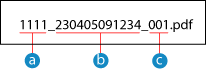  Communications management number Communications management number Date sent (in this example, "April 5, 2023, 9:12:34 AM") Date sent (in this example, "April 5, 2023, 9:12:34 AM") File sequence number (if one file, then "001") File sequence number (if one file, then "001")When you enter a string in [File Name (Optional)], the specified string is appended to the start of the above file name. |
5 | On the [Settings complete.] screen, click [End]. The [Fax Settings] screen is displayed. To exit the [Fax Settings] screen and proceed to the next step, click [To [Initial Settings] Screen]. |
[Folder Storing Settings]
Configure the settings to save received faxes to a shared folder.
1 | Click [Folder Storing Settings]. |
2 | Check the displayed message, and click [OK]. The [Folder Storing Settings] screen is displayed. |
3 | Enter the folder information, and click [Next]. [Name (Optional)] Enter any string, as needed. [Folder Path] Enter the path to the shared folder. Use "\" as a separator. Input example: when the shared folder path is C:\users\public\share users\public\share If there is no folder at the entered path, a folder with the entered name is created when scanned data is saved for the first time. * However, if there is no parent folder, or you do not have write permission to the parent folder, a sending error occurs without a folder being created. [User Name] If Restrict Access is enabled for the shared folder, enter the user name used for accessing the shared folder, using single-byte alphanumeric characters. [Password] If Restrict Access is enabled for the shared folder, enter the password used for accessing the shared folder, using single-byte alphanumeric characters. [File Name (Optional)] Enter any string, as needed. A PDF file is forwarded or saved with a file name in the following format: Communications management number Date sent (in this example, "April 5, 2023, 9:12:34 AM") File sequence number (if one file, then "001")When you enter a string in [File Name (Optional)], the specified string is appended to the start of the above file name. |
4 | On the [Settings complete.] screen, click [End]. The [Fax Settings] screen is displayed. To exit the [Fax Settings] screen and proceed to the next step, click [To [Initial Settings] Screen]. |
4
Click [Scan Settings], and configure the scan settings.
If you are not configuring the scan settings, proceed to Step 5.
[Email Sending Settings]
Configure the settings to forward received faxes to an e-mail address.
1 | Click [Email Sending Settings]. The [Email Sending Settings] screen is displayed. |
2 | Enter the information of the server to be used, and click [Next]. [SMTP Server] Enter the SMTP server name (the host name or IP address) to be used for sending e-mail, using single-byte alphanumeric characters. [Email Address] Enter the e-mail address of the machine using single-byte alphanumeric characters. [POP Server] When using POP authentication before sending (POP before SMTP), enter the POP3 server name (the host name or IP address) using single-byte alphanumeric characters. Input example:Host name pop.example.com [User Name] Enter the user name used for authenticating the POP3 server using single-byte alphanumeric characters. [Password] To set a password to use when authenticating the POP3 server, enter the password using single-byte alphanumeric characters and symbols. You can click [Check SMTP Connection] or [Check POP Connection] to check whether the machine can connect to each server. |
3 | On the [Settings complete.] screen, click [End]. The [Scan Settings] screen is displayed. To exit the [Scan Settings] screen and proceed to the next step, click [To [Initial Settings] Screen]. |
[Folder Storing Settings]
Configure the settings to save scanned originals to a shared folder.
1 | Click [Folder Storing Settings]. The [Folder Storing Settings] screen is displayed. |
2 | Enter the folder information, and click [Next]. [Name (Optional)] Enter any string, as needed. [Folder Path] Enter the path to the shared folder. Use "\" as a separator. Input example: when the shared folder path is C:\users\public\share users\public\share If there is no folder at the entered path, a folder with the entered name is created when scanned data is saved for the first time. * However, if there is no parent folder, or you do not have write permission to the parent folder, a sending error occurs without a folder being created. [User Name] If Restrict Access is enabled for the shared folder, enter the user name used for accessing the shared folder, using single-byte alphanumeric characters. [Password] If Restrict Access is enabled for the shared folder, enter the password used for accessing the shared folder, using single-byte alphanumeric characters. [Register As] Specify Coded Dial and enter a three-digit number. * Coded Dial is a destination with a three-digit number that can be directly recalled from the Address Book. |
3 | On the [Settings complete.] screen, click [End]. The [Scan Settings] screen is displayed. To exit the [Scan Settings] screen and proceed to the next step, click [To [Initial Settings] Screen]. |
5
Click [Close].
The Portal page of Remote UI appears.
* If you configured the fax settings, restart the machine. Restarting the Machine