Loading Paper in the Multi-Purpose Tray
To temporarily use paper not loaded in the paper drawer, load it in the multi-purpose tray.
You can load paper correctly by aligning the paper guides on the multi-purpose tray with the paper.
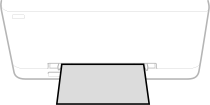
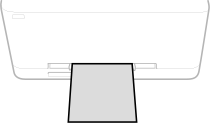
When using envelopes or paper with logos, be careful of the orientation of the loaded paper and which side is face up.
Preparations and Orientation for Loading Envelopes
Orientation for Loading Paper with a Logo
You can load paper correctly by aligning the paper guides on the multi-purpose tray with the paper.
When using envelopes or paper with logos, be careful of the orientation of the loaded paper and which side is face up.
Preparations and Orientation for Loading Envelopes
Orientation for Loading Paper with a Logo
|
Do Not Remove the Paper DrawerIf the paper drawer is removed, the machine cannot print even when paper is loaded in the multi-purpose tray. If you try to print with the paper drawer removed, an error message appears. Load only one sheet of paper at a timeOnly one sheet of paper can be loaded each time you print. |
1
Spread the paper guides apart.
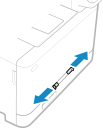
Slide the paper guides outward.
2
Insert the paper and align the paper guides against the width of the paper.
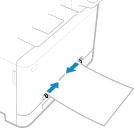
Load the paper with the print side face up.
Insert the paper 10 mm to 20 mm into the multi-purpose tray, and then slide the paper guides inward until they are aligned securely against the edges of the paper.
Paper guides that are too loose or too tight can cause misfeeds or paper jams.
3
Insert the paper slowly into the multi-purpose tray until it reaches the back of the slot.
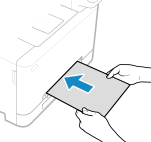
The paper is pulled slightly into the machine after it reaches the back of the slot.
To ensure that the paper is loaded squarely, hold it with both hands until the pull-in operation is complete.
 When Printing on the Back Side of Printed Paper (Manual 2-sided Printing)
Flatten the edge of the paper to remove any curls, and load the paper with the back (unprinted) side face up.
You can use only paper printed with this machine.
You cannot print on a side that has been previously printed on.
You cannot load more than one sheet of paper. Load each sheet separately to print.
If the printouts look faded, adjust the image quality. [Manual Back Side Print (2-Sided Only)]
4
Set the paper size and type. Setting the Paper Size and Type for the Multi-Purpose Tray
By default, when the machine detects paper loaded in the multi-purpose tray, the screen for setting the paper size and type is displayed on the control panel. Set the paper size and type each time you load paper.
 | ||||||||
When Loading A5 Size PaperSet the paper size according to the orientation of the loaded paper.
|