
Front Side
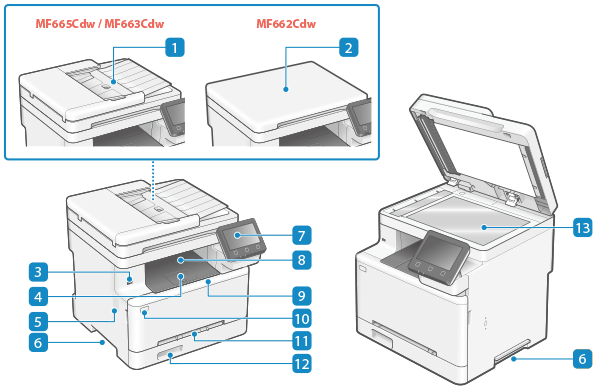
 Feeder
You can place two or more sheets of originals in the feeder. The placed originals are fed and scanned one by one automatically. Feeder
 Platen cover
Secures the originals placed on the platen glass.
 USB port (for USB devices)
You can connect a commercial USB memory device or USB keyboard.
 Paper stopper
Open the paper stopper to prevent paper from falling out of the output tray.
 Speaker
Emits sounds to notify you of the fax communication status as well as the operations and status of the machine.
Adjusting the Volume (For Models with a Fax Function)
Adjusting the Volume (For Models without a Fax Function)
Adjusting the Volume (For Models with a Fax Function)
Adjusting the Volume (For Models without a Fax Function)
 Lift handles
Hold the lift handles when moving the machine.
 Control panel
Use the display and keys to operate the machine and confirm the operations and status. Control Panel
 Output tray
Printed and copied paper is ejected to the output tray.
 Front cover
Open the front cover when replacing toner cartridges.
 Power switch
Turns the power of the machine ON and OFF. Turning ON and OFF the Machine
 Multi-Purpose Tray
To temporarily use paper not loaded in the paper drawer, load it in the multi-purpose tray. Multi-Purpose Tray
 Paper drawer
Load paper you usually use into the paper drawer. Paper Drawer
 Platen glass
Place books, thick paper, thin paper, and other originals that cannot be placed in the feeder on the platen glass to copy or scan. The placed originals are scanned in a fixed position. Placing Originals
|
To ensure efficient use of the machine, regularly clean the surface and platen glass. Cleaning the Surface of the Machine Cleaning the Platen Glass If the following symptoms occur when using the feeder, clean the feeder: Cleaning the Feeder Originals become dirty Originals frequently jam Printouts appear smudged after scanning, copying, or sending faxes |