Orientation for Loading Envelopes (Multi-purpose Tray)
Load envelopes with the print side face up. The orientation of the flap and whether it is open or closed vary depending on the size of the envelope.
Set the orientation in the [Orientation] setting of the printer driver. For details, click [Help] on the [Printing Preferences] screen to display help.
Set the orientation in the [Orientation] setting of the printer driver. For details, click [Help] on the [Printing Preferences] screen to display help.
No.10 (COM10), DL, and Monarch
Load the envelopes in landscape orientation. Insert the envelopes with the flap closed and at the back.
Example: When printing on the front side
Example: When printing on the front side
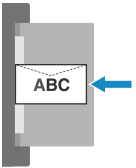
ISO-C5
Load the envelopes in landscape orientation. Insert the envelopes with the flap closed and at the back.
Example: When printing on the front side
Example: When printing on the front side
Nagagata 3
Load the envelopes in landscape orientation. Insert the envelopes with the flap open and on the right side.
Example: When printing on the front side
Example: When printing on the front side
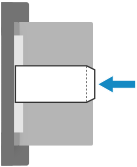
Yougatanaga 3
When Loading Envelopes with the Flap Closed
Load the envelopes in landscape orientation. Insert the envelopes with the flap closed and at the back.
Example: When printing on the front side
Example: When printing on the front side
When Loading Envelopes with the Flap Open
Load the envelopes in portrait orientation. Insert the envelopes with the flap open and on the right side.
Example: When printing on the front side
Example: When printing on the front side
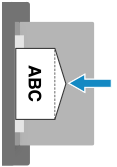
Kakugata 2
Load the envelopes in landscape orientation. Insert the envelopes with the flap open and on the right side.
Example: When printing on the front side
Example: When printing on the front side
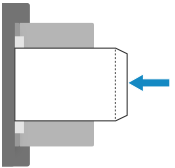
NOTE
If an Envelope Becomes Wrinkled
If envelopes can be loaded in either portrait or landscape orientation, changing the orientation that it is loaded can solve the problem.
If an Envelope Is Not Fed Correctly
If an envelope is not fed correctly even after being shaped, load envelopes one at a time.
If an envelope cannot be fed correctly or paper jams or wrinkles occur, fold the envelope flap into the envelope or rotate it to set it.

Set Nagagata 3 and Kakugata 2 envelopes by rotating them 180 degrees.
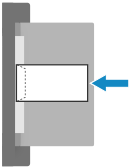
* When printing, rotate the paper orientation on the [Printing Preferences] screen of the printer driver as well. For details, click [Help] on the [Printing Preferences] screen to display help.
* When copying, rotate the orientation of the placed original.
* When printing on the back side, the output envelopes may not be aligned.
When ISO-C5 envelope is rotated 90 degrees, print with setting 229 mm x 162 mm (9” x 6 3/8”) in [Custom Size].