Loading Paper in Document Insertion Unit-R (Option)
For the size of paper that can be loaded in Document Insertion Unit-R, see the following. Loading paper of a different size (other than the usable size) may result in a malfunction.
Usable Paper
Usable Paper
NOTE
If you are loading preprinted paper to use as the cover page into the document insertion unit, you must load the paper face up.
You cannot make copies or print on paper that is loaded in Document Insertion Unit-R.
1
Slide the slide guides to the outside.
When Loading Paper in the Upper Tray
Slide the slide guides to the outside.
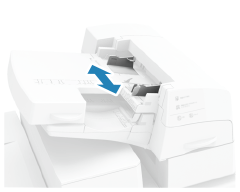
When Loading Paper in the Lower Tray
1
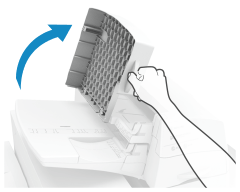
Open the tray cover.
2
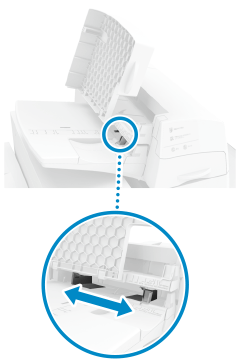
Slide the slide guides to the outside.
2
Fan the paper and align the edges.

Fan the four edges of the paper thoroughly in both directions.
After you fan the paper, align the edges on a flat surface.
3
Load the paper into Document Insertion Unit-R.
When Loading Paper in the Upper Tray
Load the paper face up.
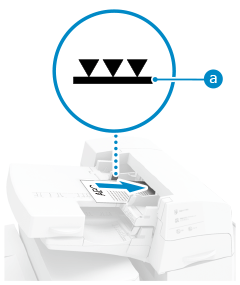
Make sure the loaded paper does not exceed the load limit line ( ). If it exceeds the load limit line, there may be misfeeds or a paper jam.
). If it exceeds the load limit line, there may be misfeeds or a paper jam.When Loading Paper in the Lower Tray
1
Load the paper face up.
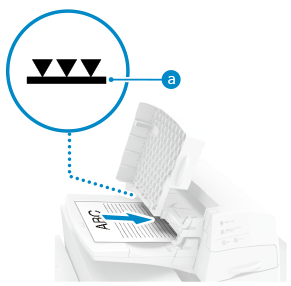
Make sure the loaded paper does not exceed the load limit line (). If it exceeds the load limit line, there may be misfeeds or a paper jam.
). If it exceeds the load limit line, there may be misfeeds or a paper jam.2
Close the tray cover.
When Loading Tab Paper
Load it in reverse tab order and face down with the tabs on the opposite side of the feeding direction.
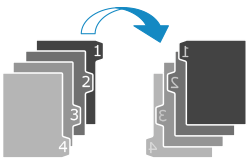
4
Select the paper size and press [Next].
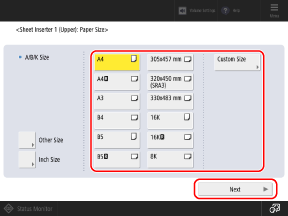
Select the same paper size that is loaded in Document Insertion Unit-R.
5
Select the paper type and press [OK].