* If the paper size and type of the multi-purpose tray are fixed, the above screen is not displayed. Fixing the Paper Size and Type to Use in the Multi-purpose Tray
If the width of the loaded paper is different from the fixed size width, a message indicating that the width does not match is displayed. In this case, cancel the fixed setting and reload the paper in the multi-purpose tray.
Setting the Paper Size and Type for the Multi-purpose Tray
When paper is loaded in the multi-purpose tray, the following screen is displayed on the control panel. Set the paper size and type according to the loaded paper.
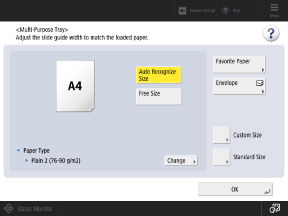
1
Set the paper size.
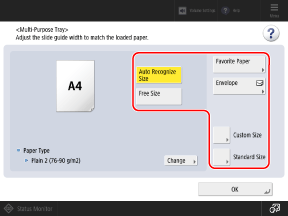
When frequently used paper is registered to the multi-purpose tray, you can recall the paper setting by pressing [Favorite Paper].
When Standard Size Paper Is Loaded
The paper size is detected automatically.
If the displayed paper size is different from the loaded paper, the paper may not be loaded correctly. Reload the paper.
If paper of a size that is not detected automatically is loaded, or a different paper size is displayed even after reloading the paper, press [Standard Size], and select the size of the loaded paper.
When Custom Size Paper Is Loaded
1
Press [Custom Size].
If you do not know the size (length of side) of the loaded paper, or you want to print using the paper size set in the printer driver, press [Free Size]. In this case, you do not need to perform Step 2 (entering the length of side).
2
Enter the values in [X] and [Y], and press [OK].
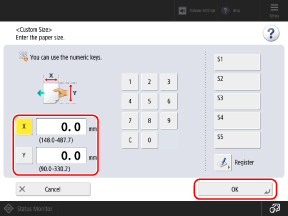
Press [X] and [Y] to select them, and enter the values.
When frequently used non-standard sizes are registered, you can call these up by pressing [S1] to [S5].
When Envelopes Are Loaded
When you set the paper size with the following procedure, the paper type is set automatically for the envelopes.
To set a custom registered paper type, register the size and type as frequently used paper, and use [Favorite Paper] to recall that paper. Registering Frequently Used Paper Settings for the Multi-purpose Tray
To set a custom registered paper type, register the size and type as frequently used paper, and use [Favorite Paper] to recall that paper. Registering Frequently Used Paper Settings for the Multi-purpose Tray
1
Press [Envelope].
2
Select the orientation and size of the loaded envelopes.
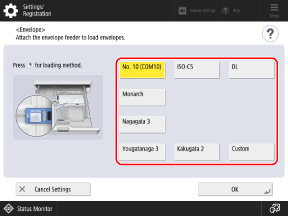
When custom size envelopes are loaded, select [Custom].
3
Press [OK].
The paper size and type are set. The steps thereafter are not required.
Depending on the orientation and size of the envelopes, [Next] may appear. Press [Next], enter the flap length of the loaded envelopes or envelope size (length of side), and then press [OK].
2
Set the paper type.
1
Press [Change].
2
Select the type of loaded paper.
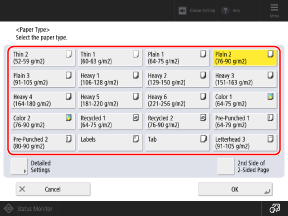
When Printing on the Back Side of Printed Paper
Select [2nd Side of 2-Sided Page].
If the Loaded Paper Type Is Not Displayed
Press [Detailed Settings], and select the paper type from the displayed list.
* If the loaded paper type is not displayed in the list, register the paper type. Registering Frequently Used Paper Types
3
Press [OK].
The initial screen is displayed.
3
Press [OK].
The paper size and type are set.
NOTE
When Priority Is Given to the Printer Driver Settings
When you are printing from the printer driver with the multi-purpose tray specified as the paper source, priority is given to the paper size and type set in the printer driver. [Paper Feed Mode for Printer Driver Jobs with MP Tray], [Prioritize Printer Driver Settings for Jobs with MP Tray] (For 8100 Series Only)