 Settings/Registration] on the [Home] screen or other screen. [Load Staples (Staples)] (For the Model with the Finisher)
Adding Staples to the Finisher (For 710Z / 610Z / 520Z)
When staples run out, [ ] is displayed at the bottom right of the screen. In this case, replace the staple case with a new one and add more staples.
You can press [] to display a step-by-step video of how to replace the staple case.
] is displayed at the bottom right of the screen. In this case, replace the staple case with a new one and add more staples.You can press [
] to display a step-by-step video of how to replace the staple case.* You can play the replacement procedure video at any time by pressing [ Settings/Registration] on the [Home] screen or other screen. [Load Staples (Staples)] (For the Model with the Finisher)
Settings/Registration] on the [Home] screen or other screen. [Load Staples (Staples)] (For the Model with the Finisher)1
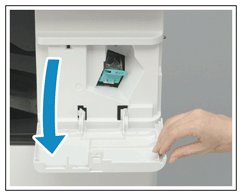
Open the front cover of the finisher.
2
Remove the staple cartridge.
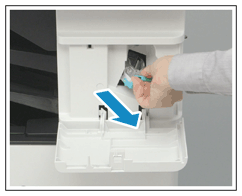
Hold the green tab on the staple cartridge and pull it straight out.
3
Remove the staple case from the staple cartridge.
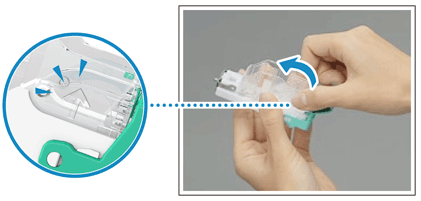
Pinch the arrow marks on the staple case, and remove it in the direction of the arrow.
4
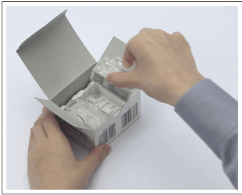
Remove a new staple case from the box.
5
Load the new staple case in the staple cartridge.
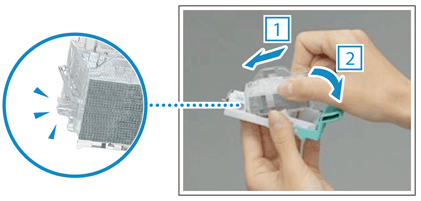
Insert the front end of the staple case into the staple cartridge, and gently push in the staple case until you hear a click.
6
Install the staple cartridge into the finisher.
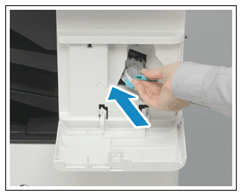
Hold the green tab on the staple cartridge and push it in as far as it will go.
7
Close the front cover of the finisher.