Replacing the Toner Cartridges
A message appears on the control panel when the amount of remaining toner is low or the toner runs out. In this case, replace the toner cartridge while following the message.
If printing pauses due to the toner running out, printing resumes after the toner cartridge is replaced.
You can press [ ] at the bottom right of the screen to display a step-by-step video of how to replace the toner cartridges.
] at the bottom right of the screen to display a step-by-step video of how to replace the toner cartridges.* You can play the replacement procedure video at any time by pressing [ Settings/Registration] on the [Home] screen or other screen. [Replace Toner Cartridge]
Settings/Registration] on the [Home] screen or other screen. [Replace Toner Cartridge]Check the precautions in "Important Safety Instructions" included with the machine before replacing the toner cartridge.
1
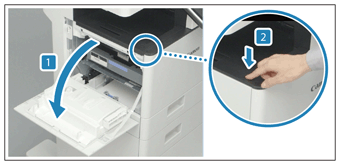
Open the left cover of the main unit.
2
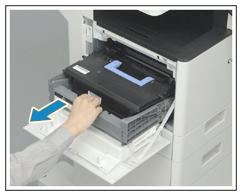
Pull out the toner cartridge tray.
3
Remove the toner cartridge.
Remove the toner cartridge while holding the knob at the top.
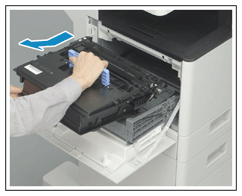
Make sure to avoid applying shocks to the toner cartridge by hitting it against something, etc. Doing so may cause the toner to leak.
Prepare a piece of paper or cloth that can get dirty, and temporarily place the removed toner cartridge on it.
4
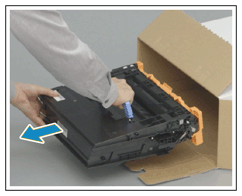
Remove the new toner cartridge from its box.
5
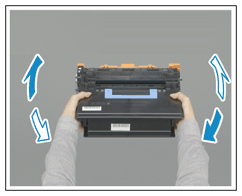
Shake the new toner cartridge about five or six times to evenly distribute the toner inside the cartridge.
In this step, do not remove the drum protective cover.
6
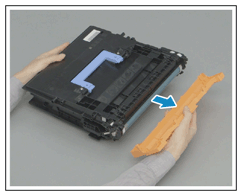
Remove the drum protective cover.
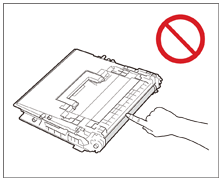
Do not touch the surface of the drum on the lateral side of the toner cartridge.
7
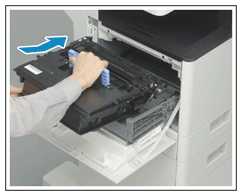
Install the new toner cartridge.
8
Push the toner cartridge tray back in, and close the left cover of the main unit.
NOTE
Calibrating the Gradation and Correcting the Density
You can calibrate the gradation and correct the density if they are different from those before replacing the toner cartridge.
If the standard density has been changed from the default setting of [Adjust Standard Density] reset the slider position set with [Adjust Standard Density] back to the default (center) position after toner cartridge replacement. Calibrating the Gradation