Registering the IPP Print Settings
You can register IPP print settings as presets. You can call up the registered presets when you print.
Settings such as the number of copies and 2-sided printing settings can be registered in the presets. You can also save documents to Mail Box.
Settings such as the number of copies and 2-sided printing settings can be registered in the presets. You can also save documents to Mail Box.
* You can register up to 10 presets.
Register presets using Remote UI from a computer. You cannot use the control panel to register presets.
Administrator or NetworkAdmin privileges are required.
Administrator or NetworkAdmin privileges are required.
1
Log in to Remote UI as an administrator. Starting Remote UI
2
On the Portal page of Remote UI, click [Settings/Registration]. Remote UI Portal Page
3
Click [Printer]  [Preset Management for IPP Printing].
[Preset Management for IPP Printing].The [Preset Management for IPP Printing] screen is displayed.
4
Click [Add Presets].
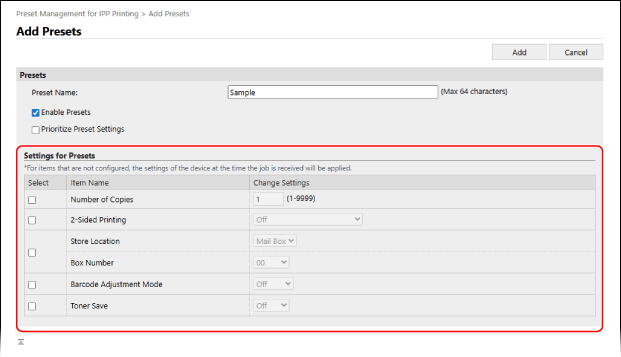
The [Add Presets] screen is displayed.
5
Enter the preset name.
6
Select the [Enable Presets] checkbox.
7
Set whether to prioritize the preset settings, as needed.
When the [Prioritize Preset Settings] checkbox is selected, the settings configured for printing will be overwritten with the preset settings.
8
In [Settings for Presets], configure the print settings.
9
Click [Add].
The registered preset is added to the [Preset Management for IPP Printing] screen.
10
Log out from Remote UI.
NOTE
Editing a Registered Preset
On the [Preset Management for IPP Printing] screen, you can click the name of a preset to edit the settings.