Paper Jams Inside the Main Unit
Remove the paper jammed inside the main unit. Follow the instructions on the control panel to check the location of the paper jam and remove the jammed paper.
If the paper tears, be sure to remove all parts so that no pieces remain.
If you cannot remove the paper, do not try to remove it forcibly. Check the control panel and remove the jammed paper at another location.
If the paper tears, be sure to remove all parts so that no pieces remain.
If you cannot remove the paper, do not try to remove it forcibly. Check the control panel and remove the jammed paper at another location.
Required Preparations
Close the cover and paper drawer if they are open.
If you are using the 710Z / 610Z / 520Z, first check whether paper is jammed in the finisher. Paper Jams in the Finisher (For 710Z / 610Z / 520Z)
1
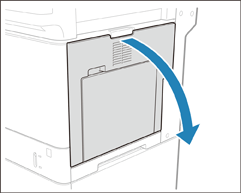
Open the right cover of the main unit.
2
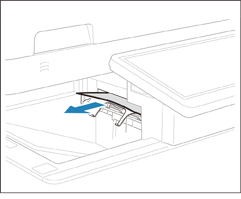
Check whether paper is jammed in the output tray of the main unit.
If paper is jammed, gently pull it out in the direction of the arrow.
3
Check whether paper is jammed in the fixing assembly.
1
Remove the fixing assembly and place it on a flat surface.
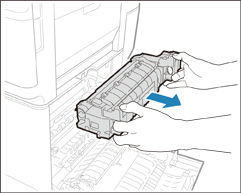
Hold the light blue part of the fixing assembly with fingers of both hands, and pull it out horizontally.
2
Open the guide of the fixing assembly.
If paper is jammed, gently pull it out in the direction of the arrow.
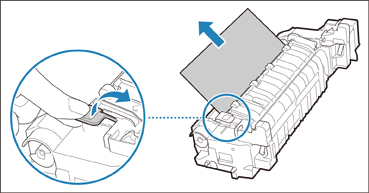
If the paper is partly out from the lower side (entry side) of the fixing assembly, gently pull out the paper in the downward direction.
3
Close the guide of the fixing assembly.
4
Check whether paper is jammed in the area where the fixing assembly was removed.
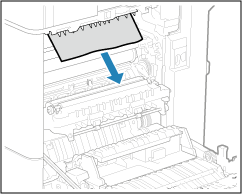
If paper is jammed, gently pull it out in the direction of the arrow.
5
Return the fixing assembly back into position.
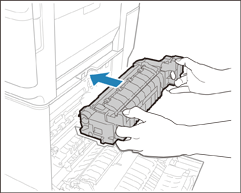
Hold the light blue part of the fixing assembly with fingers of both hands, position the fixing assembly horizontally to align it with the frame, and push it in until a click is heard.
6
Check whether paper is jammed around the feed roller.
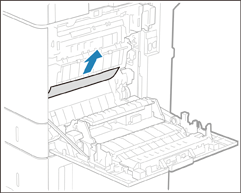
If paper is jammed, gently pull it out in the direction of the arrow.
7
Check whether paper is jammed in the multi-purpose tray paper supply area.
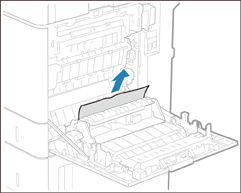
If paper is jammed, gently pull it out in the direction of the arrow.
8
Check whether paper is jammed in the duplexing unit.
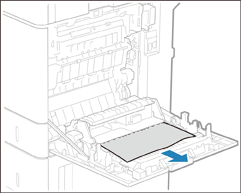
If paper is jammed, gently pull it out in the direction of the arrow.
9
Gently close the right cover of the main unit until they click.
Continue following the instructions on the screen to proceed with the interrupted operation or continue clearing paper jams.

The fixing assembly and its surroundings inside the printer are hot while you are using the printer. Make sure the fixing assembly is completely cool before removing the jammed paper. Touching the fixing assembly when it is still hot may result in burns.
IMPORTANT
In the following cases, contact your local authorized Canon dealer.
You cannot complete the procedure because paper is entangled around the fixing assembly and cannot be removed.
You can see the paper jammed inside the fixing assembly but it cannot be removed.
NOTE
If Paper Jams Occur Repeatedly
Check the status of the machine and paper. Paper Jams That Occur Repeatedly