Staple Jams in the Finisher (For C611FZ / C611Z / C521FZ / C521Z / C431FZ / C431Z / C331FZ / C331Z Only)
Remove the jammed staple from the location where it occurred. Follow the instructions on the control panel to check the location of the staple and remove the jammed staple.
Required Preparations
Close the cover and paper drawer if they are open.
1
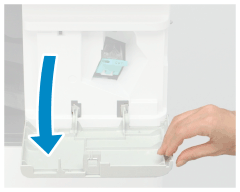
Open the front cover of the finisher.
2
Pull out the staple cartridge.
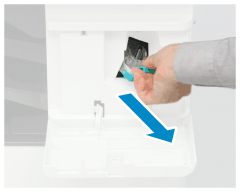
Hold the green knob on the staple cartridge, and pull it straight out.
3
Remove the jammed staples from the staple cartridge.
1
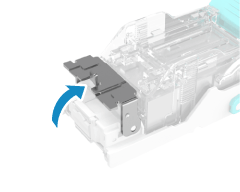
Lift the knob of the staple cartridge.
2
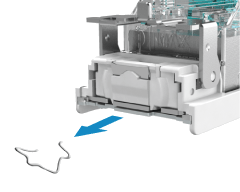
Remove all jammed staples and exposed staples.
3
Lower the knob of the staple cartridge.
4
Install the staple cartridge into the finisher.
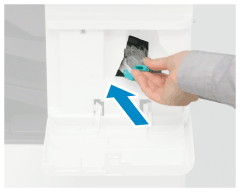
Hold the green knob on the staple cartridge, and firmly push it all the way in.
5
Close the front cover of the finisher.
Dry stapling may be performed automatically to reposition the staples.