
Adjusting Gradation
If gradation reproducibility has become so poor that the gradation in the printed or copied image differs markedly from the print data or original document, gradation adjustment may improve the problema.
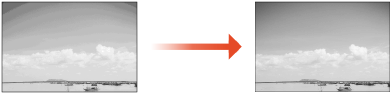
|
You can use the following paper sizes/types. Size: A3, A4, 11x17, LTR Type: Plain 1 to 2 |
 |
Adjustments may not be performed effectively if there is not sufficient toner. |
1
Press  (Settings/Register)
  <Adjustment/Maintenance> <Adjust Image Quality> <Auto Adjust Gradation>.
(Settings/Register) <Adjustment/Maintenance> <Adjust Image Quality> <Auto Adjust Gradation>.2
Select the paper source, and press <OK>.
3
Press <Start Printing>.
A test page is printed.

The test page refers to a sheet of paper with black stripes printed, which you use in the following steps.
4
Scan the test page.
1 | Place the test page on the platen glass. Place the test page as indicated by the on-screen instructions. |
2 | Close the feeder and press <Start Scanning>. The machine starts scanning the test page. |
3 | Open the feeder, and remove the test page. |
4 | Repeat steps 4 (Press <Start Printing>) and 5 (Scan the test page). To complete the adjustment, print the test page three times, and scan it each time it is printed. |