
Adjusting the Print Position for Each Paper Source
If the print position is shifted when you use a particular paper source, specify the paper source and adjust the print position.
You can adjust the print position manually by entering the measured values.
|
Check the shift amount of the image on the printed test page, and adjust the print position. Use the control panel to perform adjustment. You cannot perform adjustment using Remote UI from a computer. |
1
Press  (Settings/Register)
  <Adjustment/Maintenance> <Adjust Image Quality> <Adjust Image Position for Each Paper Drawer>.
(Settings/Register) <Adjustment/Maintenance> <Adjust Image Quality> <Adjust Image Position for Each Paper Drawer>.2
Check the instructions, and press <Next>.
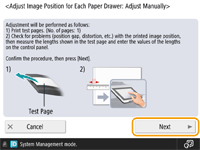
3
Select the paper source for which you want to adjust the print position, and press <Start Printing>.
The test page is printed.
4
Measure the lengths on the test page, and adjust the print position for each item.

The front side has "1st side" printed on it, and the back side has "2nd side" printed on it.
1 | Measure the lengths on the front side, enter the values, and press <Next>. |
2 | Measure the lengths on the back side, enter the values, and press <OK>. |
5
Press <Start Printing> to print the test page again, and check the adjustment results.
To end the adjustment without printing the test page, press <Close>.
6
Press [Done].
If further adjustment is needed, press [Re-Adjust] and repeat Steps 4 to 5.