[Home] Screen
This screen is displayed when you press  on the control panel.
on the control panel. Buttons corresponding to the functions or settings are displayed on the screen. Pressing [ ] or [
 ] changes the displayed buttons of functions or settings. By pressing these buttons, you can start the corresponding functions or the settings. You can also change the order of the buttons.
] or [] changes the displayed buttons of functions or settings. By pressing these buttons, you can start the corresponding functions or the settings. You can also change the order of the buttons.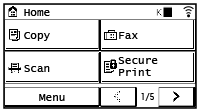
Status of the Machine Information
[ ]
]
Displays the remaining amount of toner in the toner cartridges.
]Displays the remaining amount of toner in the toner cartridges.
[ ] / [
] / [ ]
]
When connected to a wired LAN, [] is displayed. When connected to a wireless LAN, [] is displayed.
] / []When connected to a wired LAN, [
] is displayed. When connected to a wireless LAN, [] is displayed.[ ] is displayed when there is a notification. Press [] to check the notification.
] is displayed when there is a notification. Press [] to check the notification.Function and Setting Buttons
 | ||
 | ||
 | ||
 | [Secure Print] Prints data temporarily saved in the memory of the machine. Printing a Document Secured with a PIN (Secure Print) | |
 | [Menu] Configure the various settings of the machine. Settings Menu Items | |
 | [ID Card Copy] Copies the front and back sides of ID cards. Copying Both Sides of ID Cards onto One Sheet | |
 | [Passport Copy] Copies multiple passports onto one sheet of paper. Copying Multiple Passports onto One Sheet | |
 | [Favorite Copy Set.] Call up copy settings registered as Favorite Settings. | |
 | [One-Touch 1] to [One-Touch 4] Register a fax or e-mail destination. Registering Destinations (Address Book) Specifying Destinations (Address Book) | |
 | [Coded Dial] Coded Dial numbers are three-digit numbers which are assigned to an address when the address is registered in the Address Book. Use the Coded Dial number to perform a corresponding send function. Registering Destinations (Address Book) | |
 | [Addr. Book] Register destinations when sending and saving scanned data. You can specify destinations from the Address Book, and call up the send function. Registering Destinations (Address Book) Specifying Destinations (Address Book) | |
 | [Paper Set.] Set the paper size and type to use, and register frequently used paper. Specifying the Paper Size and Type | |
 | ||
 | [Home Set.] Allows you to change the order of the displayed buttons on the [Home] Screen or insert a space instead of a button. Customizing the [Home] Screen | |
 | ||
 | [Wi-Fi Settings] Connects a computer to the machine via a wireless LAN router (access point). Connecting to a Wireless LAN by Searching for a Router (Access Point Setup Method) | |
 | [Monitoring Service] Perform operations related to the Monitoring Service. To use this service, the machine must be connected to a server providing the service. | |
 |