
Turning OFF the Machine
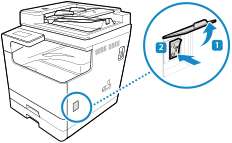
When you want to turn OFF the machine, open the switch cover on the right side of the machine and set power switch to " " side.
When you turn OFF the machine, the data that is waiting to be printed will be erased.
" side.When you turn OFF the machine, the data that is waiting to be printed will be erased.
|
The following data remains stored without being deleted even if the machine is turned OFF: Received data saved in the memory Data waiting to be sent Reports to be printed automatically after data is sent or received |
1
Open the power switch cover and press the power switch toward "".
".
The display turns off, and the power turns OFF.
It may take a few minutes until the power turns OFF. Do not unplug the power cord until the power turns OFF.
Make sure that the power indicator has gone out.
It may take a few minutes until the power turns OFF. Do not unplug the power cord until the power turns OFF.
Make sure that the power indicator has gone out.
|
Turning ON the Machine AgainWait at least 10 seconds after turning OFF the power before turning ON the machine. |
Turning OFF the Machine Using Remote UI
Administrator privileges are required to turn OFF the machine using Remote UI.
1
Log in to Remote UI in Administrator Mode. Starting Remote UI
2
On the Portal page of Remote UI, click [Settings/Registration]. Portal Page of Remote UI
3
Click [Device Management]  [Remote Shutdown].
[Remote Shutdown].The [Remote Shutdown] screen is displayed.
4
In [Device Status], check that there are no functions operating, and then click [Execute].
The shutdown confirmation message appears.
5
Click [OK].
A screen indicating that the machine is being shut down is displayed, and then the power is turned OFF.
When the power is turned OFF, Remote UI is disconnected.
When the power is turned OFF, Remote UI is disconnected.