Using the Dashboard
This section describes the procedure for displaying the error status, monitoring status, and various information regarding the devices for management such as print counts on the dashboard.
Adding a Panel to the Dashboard
1.
 > [Administrator Dashboard] or [Dashboard].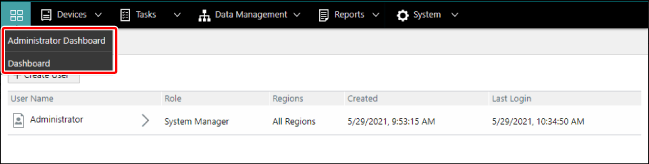
NOTE |
[Administrator Dashboard] can only be displayed by users assigned the system administrator role. [Administrator Dashboard] is a common dashboard for all users assigned the system manager role. [Dashboard] can be created for each user. |
2.
Add the panel to display on the dashboard.
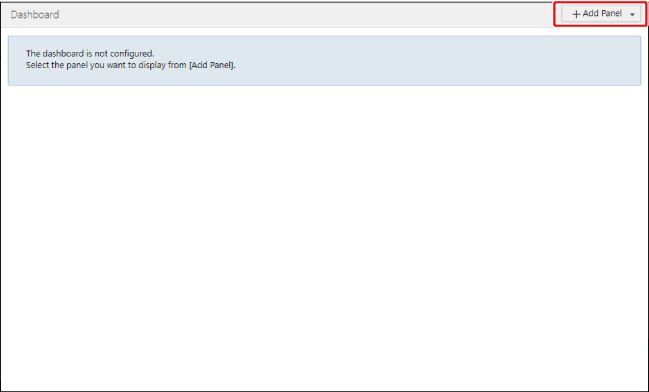
Click [Add Panel].
The added panel is displayed at the end of the dashboard.
3.
Configure each panel.
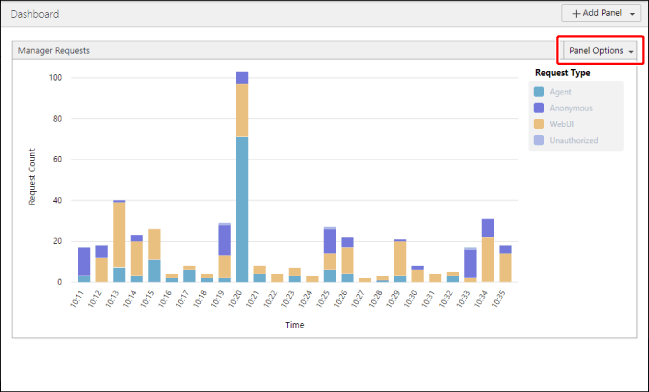
Click [Panel Options] on the top right of the panel.
The display order and width of the panel can be changed here.
NOTE |
The width cannot be changed for panels without [Change Panel Width] displayed in the menu. |
Click [Settings].
Configure the required settings, and click [Save].
Deleting a Panel from the Dashboard
1.
Click [Panel Options] on the top right of the panel.
2.
Click [Delete].
Operating the Dashboard
You can click a location of a dashboard panel where the cursor changes to [ ] to display detailed information.
] to display detailed information.NOTE |
The displayed detailed information depends on the panel. Some panels do not have detailed information, even if the [ ] icon is displayed. |
Example Dashboard Panel
This section describes an example of displaying the firmware version panel on the dashboard.
NOTE |
The application version panel can also be used to check various information using the same operations as the firmware version panel. |
In this example, four types of devices (a total of 10 individual devices) are managed as indicated in the table below.
Model | Firmware Version | Color |
Printer A | 60.00 |  |
60.00 | | |
60.00 | | |
Printer B | 50.00 | |
50.00 | | |
Printer C | 40.00 |  |
40.00 | | |
30.00 |  | |
Printer D | 20.00 | |
10.00 | |
Colors and Numeric Values Displayed on the Panel:
Screen Display | Meaning | Color |
Consistent Version | The number of devices with the same firmware version is displayed in green. This number is the total number of devices, regardless of their model. | |
Inconsistent Version (Latest) | Devices with multiple firmware versions are displayed in yellow or red. The number of devices with the latest version is displayed in yellow. This number is the total number of devices with the latest version, regardless of their model. The latest version refers to the latest version among the target devices for management. It does not refer to the latest version released by the manufacturer. | |
Inconsistent Version (Old) | Devices with multiple firmware versions are displayed in yellow or red. The number of devices with a non-latest version is displayed in red. This number is the total number of devices with a non-latest version, regardless of their model. | |
Example Panel Display
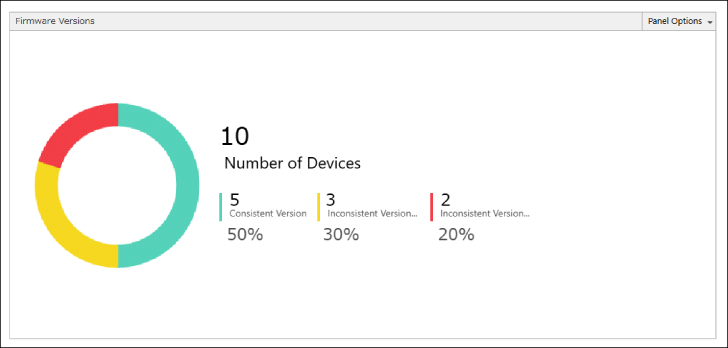
Printer A all have a consistent version, and Printer B also all have a consistent version, so the total of Printer A and Printer B (five devices) is displayed in green.
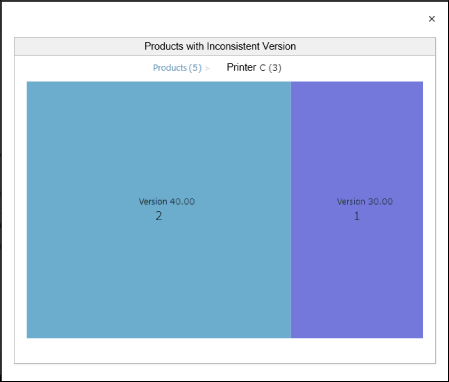
Printer C has two versions, with two devices having the latest version and one device having a non-latest version. Printer D also has two versions, with one device having the latest version and one device having a non-latest version.
The two Printer C devices with the latest version plus the one Printer D device with the latest version equal a total of three devices, which is displayed in yellow.
The one Printer C device with a non-latest version plus the one Printer D device with a non-latest version equal a total of two devices, which is displayed in red.
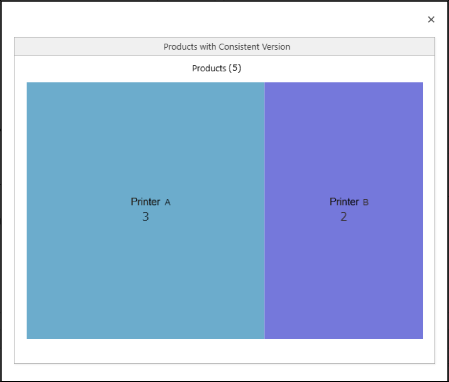
Drilling down [Products with Consistent Version] to display the firmware version
1.
Click the [Products with Consistent Version] area of the panel. Or, click the green area of the graph.
2.
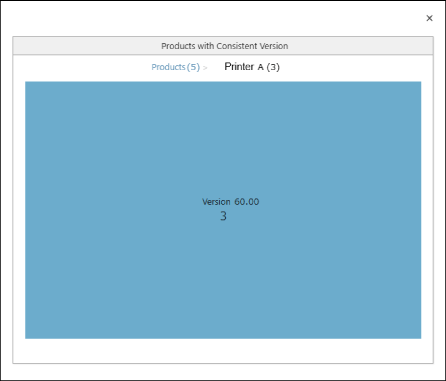
Click a product of your choice.
3.
Check the firmware version.
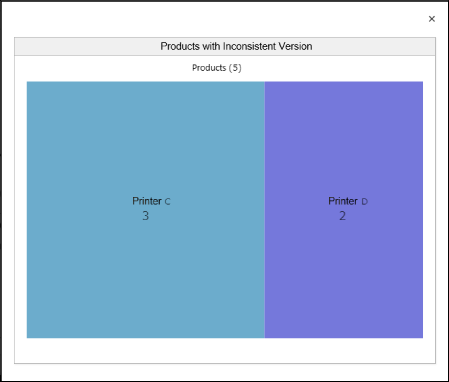
Drilling down products with an inconsistent version to display the firmware version
1.
Click the [Inconsistent Version (Latest)] or [Inconsistent Version (Old)] area. Or, click the yellow or red area of the graph.
2.
Click a product of your choice.
3.
Check the firmware version.
A summary of the firmware version is displayed.
If you click a displayed non-latest version, you can copy the serial numbers of the devices with a non-latest version to the clipboard.