Cleaning the Feeder
If any of the following problems occurs when the document is scanned from the feeder, then perform feeder cleaning. The document cannot be scanned clearly The size of the document cannot be detected correctly The document gets dirty during scanning Paper jam occurs frequently |
1
Turn the power OFF, and remove the power plug from the power outlet.

Check the operation status of the machine before turning the power OFF. You can turn the power OFF even if the machine is executing an operation, but this may cause the operation to be interrupted or data to become damaged.
2
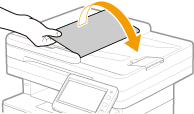
Open the original supply tray.
3
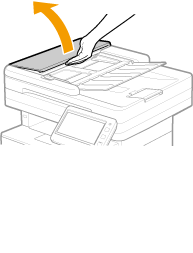
Open the feeder cover.
4
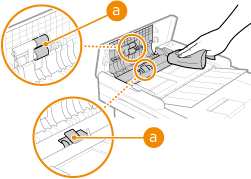
Wipe the rollers ( ) inside the feeder and surrounding areas.
) inside the feeder and surrounding areas.Wet a soft cloth with water and wring it out well, then wipe the rollers. Afterwards, wipe the rollers with a soft and dry cloth.
5
Close the feeder cover and original supply tray.
6
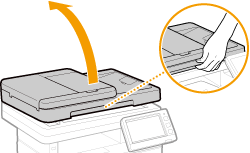
Open the feeder.
7
Wipe the document feed scanning area.
Wipe the thin glass strip.
Wet a soft cloth with water and wring it out well, then wipe the plate with it. Afterwards, wipe the plate with a soft and dry cloth. Afterwards, wipe the machine with a soft and dry cloth.
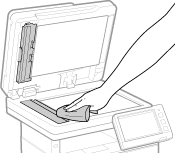
Wait until the moisture has completely dried before proceeding to the next step.
8
Gently close the feeder.
9
Insert the power plug into the power outlet, and turn the power ON.
 |
If streaks still appear on the originals or paper after the feeder cleaning operationLoad about 10 sheets of A4 size paper in the feeder and perform the following procedure to execute <Clean Feeder>. When a message indicating that cleaning is complete is displayed, try using the feeder to copy an original to check if the problem has been resolved. It takes approximately 10 seconds to clean the feeder. |