Front Side
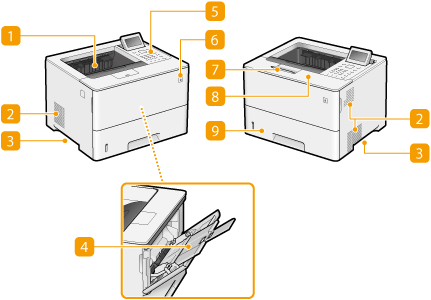
 Output tray
Printed paper is output to the output tray.
 Ventilation slot
Air from inside the machine is vented out to cool down the inside of the machine. Note that placing objects in front of the ventilation slots prevents ventilation.
 Lift handles
Hold the lift handles when carrying the machine. Relocating the Machine
 Multi-purpose tray
Load the paper into the multi-purpose tray when you want to temporarily use a type of paper different from that which is loaded in the paper drawer.
 Control Panel
The control panel consists of numeric keys, a display, status indicators, etc. You can perform all the operations and specify settings from the control panel.
 Power switch
Press the power switch to turn ON and turn OFF the machine.
 Paper stopper
Open the paper stopper to prevent paper in the output tray from falling.
 Front cover
Open the front cover when replacing toner cartridges or removing jammed paper from inside the machine.
 Paper drawer
Load the type of paper you frequently use into the paper drawer.
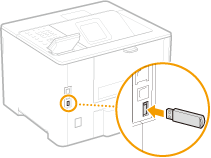
Connecting a USB Memory Device
You can connect a USB memory device to the USB port located on the back side of the machine, and directly print data from the USB memory device.
 |
Make sure that the USB memory device is oriented properly when connecting it to the machine. If it is not connected properly, it may cause the USB memory device or machine to malfunction. Make sure to follow the proper procedure when removing the USB memory device. Inserting/Removing Memory Media Failure to do so may cause the USB memory device or machine to malfunction. You can use a USB memory device with a FAT32 (up to 32 GB) or exFAT (up to 2 TB) file system. |
 |
Unsupported devices and usagesMemory media with security functions Memory media that does not meet the USB specification Memory card readers connected via USB Connecting memory media via an extension cable Connecting memory media via a USB hub |