Configuring the Initial Settings for Remote UI, Fax and Web Service Usage
Access the IP address of the machine from a Web browser on a computer, and configure the initial settings for Remote UI and Web service usage.
For details on supported models, see the following: Supported Functions and Options
For details on supported models, see the following: Supported Functions and Options
Required Preparations |
Check the operating environment of Remote UI. Supported Environment Connect the computer you are using to operate Remote UI to the machine over a network. Setting Up the Network Check the IP address of the machine. Checking the Network Status and Settings |
1
From a Web browser on a computer, access the following URL.
http://<IP address of the machine>/ |
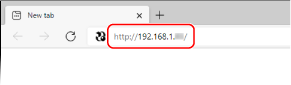
The [Password Settings] screen is displayed.
This screen is displayed only if you access it within 15 minutes of connecting the machine to the network.
If the Remote UI login screen is displayed, log in to Remote UI in Administrator Mode.
If you have not set the Remote UI password, set the password on the machine. Setting the ID and PIN for the Administrator
If you have not set the Remote UI password, set the password on the machine. Setting the ID and PIN for the Administrator
When entering an IPv6 address, enclose the IP address in brackets [ ].
Example:
http://[fe80:2e9e:fcff:fe4e:dbce]/
 If the Remote UI Login Screen Is Not Displayed
When a message such as [Cannot access Remote UI.] is displayed and the login screen is not displayed, see the following:
Cannot Access Remote UI
Cannot Access Remote UI
2
Set the password required for login by following the instructions on the screen, and click [OK].
The [Initial Settings] screen is displayed.
* If the screen is not displayed, click [Initial Settings] on the Portal page.
3
Click [Fax Settings], and configure the fax settings.
If you are not configuring the fax settings, proceed to Step 4.
[Fax Setup Guide]
Configure the settings required for using the fax function.
1 | Click [Fax Setup Guide]. The [Enter Registration Information] screen is displayed. |
2 | Enter the machine's fax number and unit name (name or company name), and click [Next]. |
3 | Answer the questions displayed on the [RX Mode Settings] screen by selecting [Yes] or [No]. |
4 | Check the selected RX mode, and click [Next]. The [Connect Telephone Line] screen is displayed. |
5 | Connect the supplied telephone cord to the telephone line jack (LINE) on the machine and the telephone line connector on the wall. 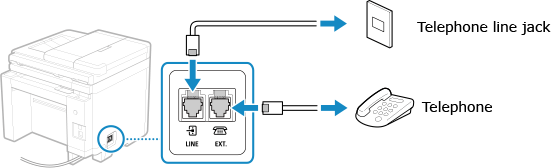 Connect the telephone to the external telephone jack on the machine. When connecting a telephone with fax function, be sure to disable the fax auto receive setting on the telephone. Depending on the type of telephone connected to it, the machine may not be able to send or receive faxes properly. |
6 | Click [Done]. |
7 | Click [End]. The [Fax Settings] screen is displayed. To exit the [Fax Settings] screen and proceed to the next step, click [To [Initial Settings] Screen]. |
4
Click [Web Service Usage], and configure the Web service usage settings.
Specify whether to use the Canon cloud integration service. If you are not configuring the Web service usage settings, proceed to Step 4.
1 | Check the message, and click [I Accept]. |
2 | Click [Next]. |
3 | On the [Settings complete.] screen, check the message and click [End]. If the connection fails, check the settings of the machine and network. Setting Up the Network |
5
Click [Toner Delivery Settings], and configure the toner replenishment service. [Toner Delivery Settings] (Administrator Mode only)
This service is only available in certain countries.
If you are not configuring the toner delivery settings, proceed to Step 6.
If you are not configuring the toner delivery settings, proceed to Step 6.
6
Click [Close].
The Portal page of Remote UI appears.