[Volume Settings] and [Other Volume Settings] Screens
On the [Home] screen of the control panel, press [Volume Settings] or [Volume Settings]  [Other Volume Settings] to display the screen.
You can adjust the volume of notification sounds for operations and statuses, such as when the control panel is used or an error is detected.
[Other Volume Settings] to display the screen. You can adjust the volume of notification sounds for operations and statuses, such as when the control panel is used or an error is detected.
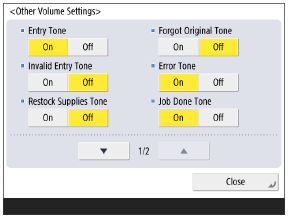
[Entry Tone]
Select whether to emit a sound when a key or button of the control panel is pressed.
[Invalid Entry Tone]
Select whether to emit a sound when an invalid value is entered or an invalid key operation is performed.
[Restock Supplies Tone]
Select whether to emit a sound when the remaining toner is low.
[Forgot Original Tone]
Select whether to emit a sound when an original remains on the platen glass.
[Error Tone]
Select whether to emit a sound when a problem occurs with the machine, such as when a paper jam or malfunction has occurred.
[Job Done Tone]
Select whether to emit a sound when an operation such as scanning or copying is complete.
[Sleep Mode Tone]
Select whether to emit the following sounds:
Sound emitted when the machine enters Sleep Mode
Sound emitted when the machine is turned OFF while Quick Startup is enabled
* The machine does not emit this sound if it is turned OFF in a situation that does not allow it to start up quickly next time, even if Quick Startup is enabled.
[Login Tone]
Select whether to emit a sound when a user logs in.
[Non-Empty Toner Rplcd. Tone]
Select whether to emit a sound when a toner cartridge that does not need replacement is pulled out.
[Memory RX/TX End Tone]
Specify whether the machine emits a sound when Fax Memory Lock sending and receiving is completed normally.
[Memory RX/TX Error Tone]
Specify whether the machine emits a sound when an error occurs with Fax Memory Lock sending and receiving.
NOTE
The machine emits sounds according to the [Entry Tone] and [Invalid Entry Tone] settings, even when you enter characters using a USB keyboard connected to the machine.