
Making Booklets (Booklet Copying)
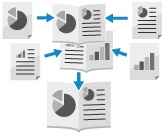
You can arrange the page layout so that 2-sided copies form a booklet when they are folded in half. You can also add a cover using different paper than that of the main document.
Placing originals when making booklet copies
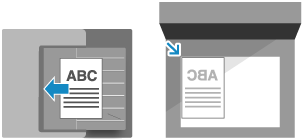
Place originals of the same size. You cannot perform booklet copying for originals of different sizes.
Place vertical originals in portrait orientation.
IMPORTANT
Usable Paper
Booklet copying may not be available with some sizes and types of paper. If you use heavy paper for the cover, the machine may not copy onto the cover even when you configure the settings to do so, depending on the thickness of the paper. Usable Paper for Booklet Printing
1
On the copy screen, press [Options]  [Booklet]. Copy Screen
[Booklet]. Copy ScreenThe [Booklet: Set Type and Paper] screen is displayed.
2
Select whether or not to arrange the pages in booklet layout.
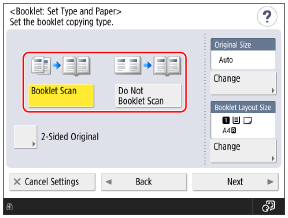
Normally, select [Booklet Scan]. If you are using an original with pages that are already arranged in booklet layout, select [Do Not Booklet Scan].
Performing Booklet Copying with 2-Sided Originals
Press [2-Sided Original], select how the original opens, and press [OK].
[Book Type]
Select this if the top and bottom orientation of the front and back sides of the original are the same.
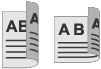
[Calendar Type]
Select this if the top and bottom orientation of the front and back sides of the original are opposite.

Select the original size and paper type as required, then press [Next].
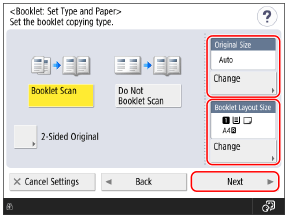
The [Booklet: Finishing Settings] screen is displayed.
When Changing the Original Size
Press [Change] under [Original Size], select the size of the original, and press [OK].
When Changing the Paper to Use for Booklet Copying
Press [Change] under [Booklet Layout Size], select the paper to be used, and press [OK].
On the screen for selecting the paper, you can press [ ] to check the details of the selected paper.
] to check the details of the selected paper.The copy ratio (enlarge or reduce setting) is set automatically according to the selected paper size.
To perform booklet copying for an original at 100% magnification, select the paper size of the original when spread open.
Example: When the size of the original is A4
If A4 size (A4R) paper is selected in [Booklet Layout Size], each page is reduced to A5 size when copied.
If A3 size paper is selected in [Booklet Layout Size], each page is copied at A4 size.
4
Configure the cover settings, as needed.
You can add a cover using different paper than that of the main document.
You can also copy the original onto the cover. Include the cover original in the normal original when you want to copy onto the cover.
You can also copy the original onto the cover. Include the cover original in the normal original when you want to copy onto the cover.
1
Press [Add Cover].
The [Add Cover] screen is displayed.
2
Select whether to copy onto the cover.
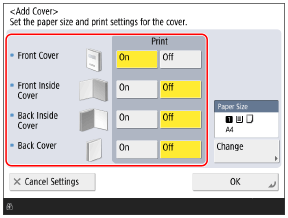
Select whether to copy onto each page that forms the cover.
3
Select the paper to be used as the cover.
Press [Change] under [Paper Size], select the paper to be used, and press [OK].
You can only select the same size of paper as that used for the main document.
On the screen for selecting the paper, you can press [] to check the details of the selected paper.
] to check the details of the selected paper.4
Press [OK].
The [Booklet: Finishing Settings] screen is displayed again.
5
Configure the opening type, as needed.
Press [Opening Type], select the opening type, and press [OK].
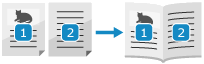
[Left Opening]
In a spread-open layout, pages are ordered as left page, then right page.
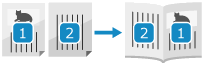
[Right Opening]
In a spread-open layout, pages are ordered as right page, then left page.
6
Press [OK] [Close].
[Close].The copy screen is displayed again.