Copying with a Specific Color Removed

You can copy originals with a specific color removed.
* For the basic copy operations, see the following:
1
On the copy screen, press [Options]  [Remove Specific Color].Copy Screen
[Remove Specific Color].Copy ScreenThe [Remove Specific Color] screen is displayed.
2
Select the color to remove, then press [OK].
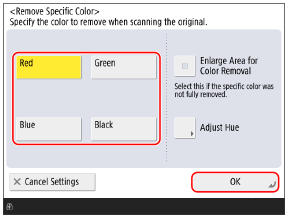
If the specified color is not removed, enable [Enlarge Area for Color Removal].
If you selected [Red], [Green], or [Blue], you can press [Adjust Hue] to adjust the hue.
3
Press [Close].
The copy screen is displayed again.