Control Panel
Use the control panel to operate the machine and configure the settings.
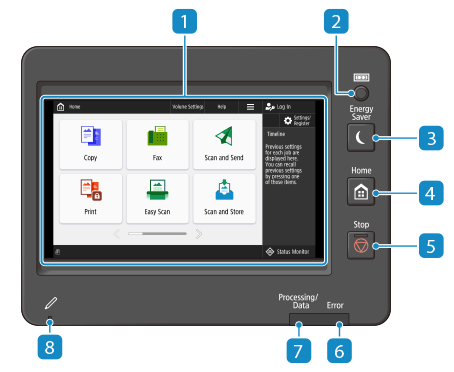
 Display
Displays the screens for operating the functions, usage, messages, and other information. This touch panel can be operated by directly touching the screen with your finger. Using the Control Panel
 [Counter/Device Information] key
Press to display the total number of pages used for operations such as copying or printing on the touch panel display. You can also check the serial number and IP address of the machine, and the device information of optional products. Checking the Number of Pages for Copy/Print/Fax/Scan
 [Energy Saver] key
Press to put the machine into sleep mode. The key lights up when the machine is in sleep mode. Entering Sleep Mode
 [Home] key
Press to display the Home screen, which provides access to the setting menu and functions such as copy and scan. Customizing the <Home> Screen
 [Stop] key
Stops a send job or a print job. Canceling Send/Print Jobs
 Error indicator
This blinks or lights up when a paper jam or other error occurs.
If it blinks, follow the instructions of the message on the screen to fix the problem.
If it lights up, contact your dealer or service representative.
 Processing/Data indicator
This blinks when an operation is being performed, such as during communication or printing.
This lights up when data is waiting to be processed.
This lights up when data is waiting to be processed.
 Panel Touch Pen
Use when operating the touch panel display, such as to enter characters.