Copying while Removing a Specified Color
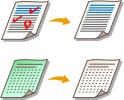 | You can copy an original while removing a specified color. You can copy originals while removing the background color (paper color) or red markings, such as grading marks. |
1
Place the original. Placing Originals
2
Press <Copy>. <Home> Screen
3
Press <Options> on the Copy Basic Features Screen.Copy Basic Features Screen
4
Press <Remove Specific Color>.
5
Select the color that you want to remove.
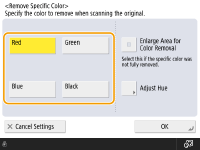
If the specified color is not removed and remains, select <Enlarge Area for Color Removal>.
6
Press <Adjust Hue> to adjust the hue of the color to be removed, if necessary.
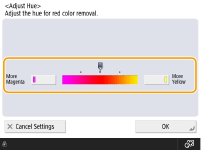
You can adjust the hue when you select <Red>, <Green>, or <Blue>.
7
Press <OK>  <Close>.
<Close>.8
Press  (Start).
(Start).Copying starts.