Specifying Authentication of an SFTP Server
When a scanned document is sent to an SFTP server, transmission error can be prevented by authenticating the server. The settings can be specified using Remote UI from a computer. On the control panel, you can specify only whether to authenticate a server. Administrator privileges are required to configure. <Host Authentication for SFTP TX>
1
Log in to Remote UI as an administrator. Starting the Remote UI
2
Click [Settings/Registration] on the portal page. Remote UI Screen
3
Click [Send]  [Common Settings].
[Common Settings].The [Common Settings] screen is displayed.
4
Select the [Use Host Authentication for SFTP TX] checkbox.
5
Click [Public Key Settings] for [Public Key to Use at Authentication].
The [Public Key Settings] screen is displayed.
6
Click [Register].
The [Register Public Key] screen is displayed.
7
Register a public key.
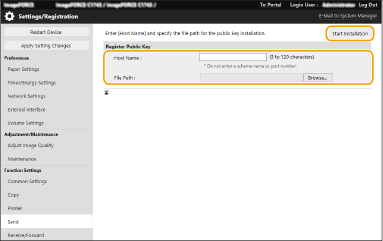
1 | Enter the host name in [Host Name]. |
2 | Click [Browse...], then specify the file to install. |
3 | Click [Start Installation]. |