Outputting the List of Applications
This section describes the procedure for displaying a list of the applications installed in a device and outputting that list to a file.
NOTE |
The application information can also be checked on the dashboard. |
1.
Select the [Reports] menu > [Applications].
2.
Switch the display using the drop-down list on the top of the list on the [Applications] page.
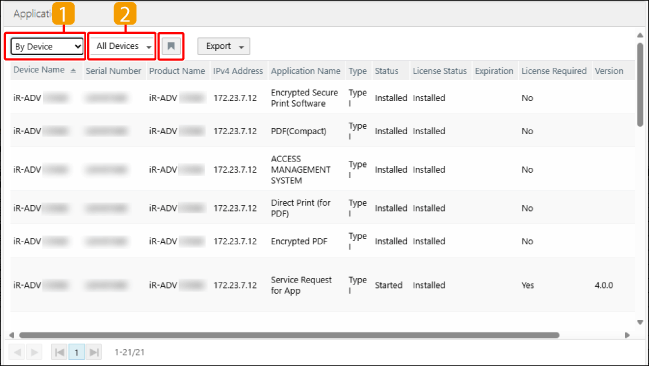
 | Select whether to display the list by application or by device. |
[By Application] | Displays the applications installed in the printer by application. |
[By Device] | Displays the applications installed in the printer by printer. |
 | Select the target devices for totaling. When selecting a device group or region, you can enter a string in the [Search] text box of the drop-down list to filter the candidates displayed in the drop-down list. The region is displayed for users with multiple regions set. Displayed when [By Device] is selected in  . . |
 | The selection state of the drop-down list and the sorting order of the list are saved. |
3.
If necessary, display the list of printers where individual applications are installed.
If you selected [By Application], click the number of printers with the target application.
4.
To output the content displayed on the screen to a file, select the file format for outputting the report from the [Export] drop-down list on the top of the list.
Follow the direction on the screen to save the file.
There are cautions to follow when exporting to a CSV file or Excel file. For details, see the following.