Screen Structure of This App
The structure of the home screen of this app is indicated below.
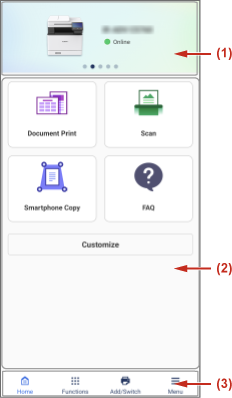
(1) Printer View Area
Displays the number of registered printers and the status of each printer.
You can tap the icon of a printer to display the [Printer Details] screen.
On the [Printer Details] screen, you can view printer details and printer manuals.
You can swipe horizontally to switch the target printer to operate.
(2) Menu Area
Displays the menu for the selected printer.
You can swipe the printer view area horizontally to switch to the menu for the printer.
You can replace and rearrange the items in the menu.
You can tap [Customize] on the bottom of the menu area to change the items in the menu.
(3) Footer Area
[ ] (Home): Displays the home screen.
] (Home): Displays the home screen.[ ] (Functions): Displays a list of the functions available with this app.
] (Functions): Displays a list of the functions available with this app.This list enables you to select functions not in the menu area. It also provides a function for displaying this manual.
The displayed functions may differ according to the printer selected in the printer view area and the environment where this app is used.
[ ] (Add/Switch): Enables you to register a new printer.
] (Add/Switch): Enables you to register a new printer.You can also switch the target printer to operate from this menu, in the same manner as switching the printer in the printer view area.
[ ] (Menu): Displays a description of this app.
] (Menu): Displays a description of this app.Also enables you to configure the settings required for using this app. Details on the settings are described in each procedure.