Register a Printer
You can register the printer to use to this app.
To register a printer, you must use one of the following methods to search for or connect the printer.
Auto Search
Automatically search for a printer on the same network.
Connect by QR Code
Scan the QR code displayed on the printer with the smartphone to connect to the printer.
Manual Search
Manually search for a printer by specifying its IP address or DNS name.
This method can also be used to search for a print server.
Things to Check Before Registering a Printer
Confirm that the printer to register supports this app.
Only supported printers are detected in this app.
You can check the supported printers on the support website for this app.
Confirm that the printer to register is on the same network as the smartphone using this app.
You can check the SSID of the network that this app is connected to on the screen displayed by performing the following operation.
Home screen > [ ] (Add/Switch) > [Register Printer] > [If Printer Cannot be Found] > [Configure Printer Wireless LAN]
] (Add/Switch) > [Register Printer] > [If Printer Cannot be Found] > [Configure Printer Wireless LAN]Confirm that the printer and smartphone are connected to the same network.
The method for connecting the printer differs according to the printer, such as when the printer is connected via a LAN cable. For details, refer to the manuals provided with the printer.
Check the certificate installed in the printer (when registering a printer connected with Wi-Fi).
 NOTE
NOTEWhen the smartphone and printer are connected by Wi-Fi, a server certificate installed in the printer is used for encrypted communication.
To prevent man-in-the-middle attacks and ensure strong security, it is necessary to install an authenticated server certificate to the printer.
However, the server certificate installed at the time of shipping is a self-signed certificate.
When using a self-signed certificate, there is a possibility of confidential information such as user names, passwords, etc. leaking due to a man-in-the-middle attack, such as an attack where a computer pretending to be a printer is installed on the intranet.
For information on installing a server certificate, consult the administrator of the printer.
Register a Printer with Auto Search
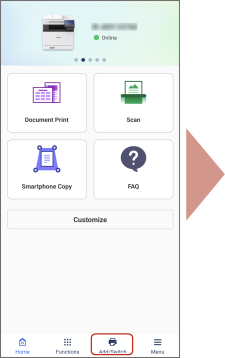 |  |  | |||
Home |  | Add/Switch | | Register Printer | |
1. On the home screen, tap [] (Add/Switch).
] (Add/Switch).2. Tap [Register Printer].
3. Select the printer to register from the list of printers.
If you cannot find the desired printer, connect the printer by QR code or register the printer by searching for its IP address or DNS name.
Register a Printer by QR Code
Prerequisites
Display the QR code at the printer.
You can display the QR code from [Mobile Portal] on the printer.
Enable the direct connection function at the printer (when using direct connection).
Procedures
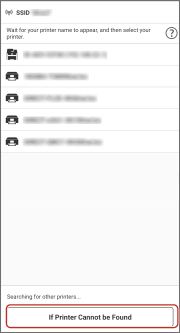 |  | 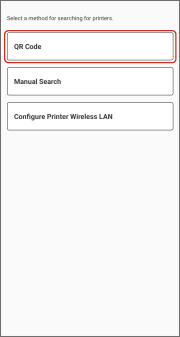 |
Register Printer | Select Search Method |
1. On the [Register Printer] screen, tap [If Printer Cannot be Found].
2. If a confirmation message is displayed on the [Searching] screen, tap [Yes].
3. Tap [QR Code].
If the [Usage] screen is displayed, confirm the displayed information and tap [Continue].
4. On the displayed screen, scan the QR code displayed on the printer.
Prerequisites
Check the IP address or DNS name of the printer.
To search by DNS name, specify the host name or FQDN.
If you cannot identify the printer by host name, specify the FQDN.
Example of specifying the FQDN when the host name is "device01", the sub domain name is "aaa" and the domain name is "bbb.co.jp":
device01.aaa.bbb.co.jp
Procedures
| | 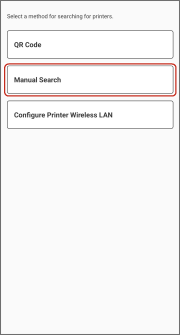 | |  |
Register Printer | Select Search Method | Manual Search |
1. On the [Register Printer] screen, tap [If Printer Cannot be Found].
2. If a confirmation message is displayed on the [Searching] screen, tap [Yes].
3. Tap [Manual Search].
4. Enter the IP address or DNS name of the printer.
Prerequisites
Check the queue name, printer port, and byte count of the print server.
Match the queue name specified in this app with the shared name of the printer registered in the print server.
If the names do not match, printing may not be possible, depending on the print server.
Procedures
1. Perform the following procedure.
2. If a message indicating that a supported printer could not be found is displayed, tap [Register As].
3. Enter the registered name in [Registered Name] → configure the print server information.
4. Tap [Register].
NOTEIf you are using a print server and register a printer that is compatible with the UFRII LT printer driver, you may not be able to print.
Delete a Registered Printer
For Android
1. Tap [x] on the right of the printer to delete.
For iOS
1. On the home screen, tap [] (Add/Switch) > [Edit].
] (Add/Switch) > [Edit].2. Swipe the printer to delete.