519H-018
[Windows] Способы устранения для признаков неполадок (Color Network ScanGear 2)
Check the causes and remedies for the symptoms indicated below.
ПРИМЕЧАНИЕ
Screens and operations may differ, depending on the environment of your computer and the following conditions.
The device you are using and its settings, firmware version, and option configuration
The driver you are using and its version
Driver Error Symptom
[Preview] is grayed out on the main screen and cannot be clicked
A preview cannot be displayed when originals are placed in the feeder of the device or when the method for placing originals is set to the feeder.
To use the preview function, place the originals on the platen glass of the device, and select [Platen Glass] from [Scanning Method] in the [Basic Settings] sheet.
Scanning stops when the number of transferred pages reaches 100%
The application used for scanning may be blocked by the Windows Firewall.
Click [Cancel] in the dialog box displayed while scanning to import the images correctly.
If communication via Windows Firewall is now allowed, change the firewall settings of the application you are using to allow communication.
Allowing Communication via Windows Firewall
This section describes the procedure for allowing communication via the firewall for the application you are using.
1
Display [Параметры]  [Сеть и Интернет], in Windows.
[Сеть и Интернет], in Windows.2
Click [Брандмауэр Windows] on the displayed screen.
3
On the [Безопасность Windows] screen, click [Брандмауэр и безопасность сети] [Разрешить работу с приложением через брандмауэр].
[Разрешить работу с приложением через брандмауэр].4
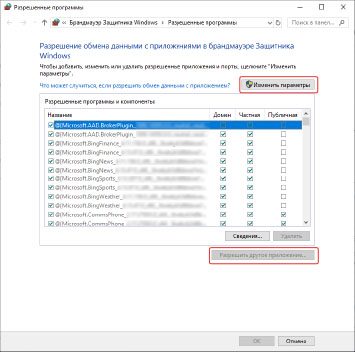
Click [Изменить параметры] → click [Разрешить другое приложение].
5
Add the application to use → click [Добавить].
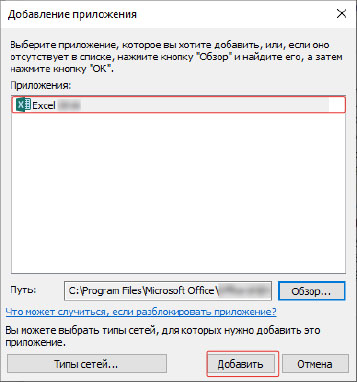
If the application to use is not displayed in [Приложения], perform the procedure below to add it.
(1) Click [Обзор].
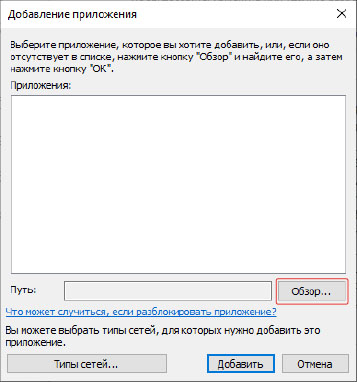
(2) On the file selection screen, select the application to allow communication via the firewall, and click [Открыть].
6
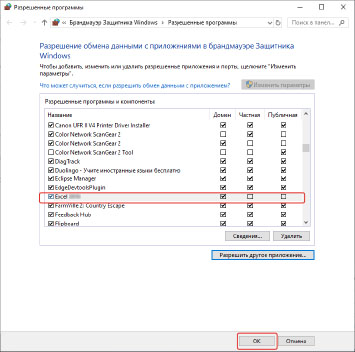
Confirm that the application to use is selected, and click [ОК].