 "Maintenance" > "Adjusting Print and Finish Quality" > "Adjusting Gradation Automatically" in the User's Guide
5WRJ-006
How to Re-create Standards for Automatic Color Tone Correction
Standard values for automatic color tone correction are already registered as factory defaults. However, you can create new standard values best for your usage environment.
These factory-default standard values are just general values. You can create new standard values for your usage environment and use them for automatic color tone correction, allowing you to calibrate the machine with greater accuracy.
These factory-default standard values are just general values. You can create new standard values for your usage environment and use them for automatic color tone correction, allowing you to calibrate the machine with greater accuracy.
Required Calibration
This section explains how to create new standard values for calibration.
Set <Correction Level> of automatic gradation calibration to <By Paper Type Group>.
"Maintenance" > "Adjusting Print and Finish Quality" > "Adjusting Gradation Automatically" in the User's GuideIMPORTANT
Before performing automatic color tone correction, you need to perform automatic gradation calibration. If automatic gradation calibration has already been done, proceed to step 6.
1
Load the paper into the paper deck or drawer.
For the European and Asia-Pacific Regions
<Plain/Heavy 1> | <Heavy 2-9> | |
Loaded paper | Canon Top Colour Zero FSC (100 g/m2) | Canon Top Colour Zero FSC (250 g/m2) |
For the American Region*
<Plain/Heavy 1> | <Heavy 2-9> | |
Loaded paper | Hammermill Color Copy Digital (28 lb bond (105 g/m2)) | Mohawk Options Navajo Smooth Brilliant White (90 lb Cover (243 g/m2)) |
* If the paper name is described for the European and Asia-Pacific regions in the following pages, see the corresponding paper name described in the table above.
2
Make sure that the paper type in the paper deck or drawer is the same as the loaded paper.
"Basic Operations" > "Specifying Paper Size and Type" > "Specifying Paper Size and Type in the Paper Deck/Drawer" in the User's GuidePress  → <Preferences> → <Paper Settings> → <Paper Settings> to check the paper type.
→ <Preferences> → <Paper Settings> → <Paper Settings> to check the paper type.
3
Select the paper that you want to correct, then press <Initialize When Using Full Adjust>.
"Maintenance" > "Adjusting Print and Finish Quality" > "Adjusting Gradation Automatically" in the User's Guide > see the subsection "Selecting Paper for Calibration"Press → <Adjustment/Maintenance> → <Adjust Image Quality> → <Auto Adjust Gradation> to select the paper.
→ <Adjustment/Maintenance> → <Adjust Image Quality> → <Auto Adjust Gradation> to select the paper.The selected paper is displayed in yellow.

4
Press <On> → press <OK>.

5
Perform automatic gradation calibration (full calibration).
"Maintenance" > "Adjusting Print and Finish Quality" > "Adjusting Gradation Automatically" in the User's Guide > see the subsection "Full Adjustment"Select the paper deck or drawer where you loaded the paper in step 1 as the paper source for test printing.

6
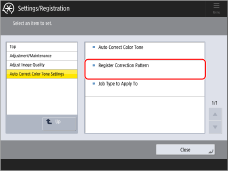
Create and register a new standard for automatic color tone correction.
"Maintenance" > "Adjusting Print and Finish Quality" > "Adjusting Color Tone" in the User's Guide > see the subsection "Creating a Color Adjustment Standard"Select <Plain 2 (76 g/m2 to 90 g/m2)> for "the paper type selection."
Select "the paper deck or drawer where you have loaded "Canon Top Colour Zero FSC (100 g/m2)" for "the paper selection of a test page."
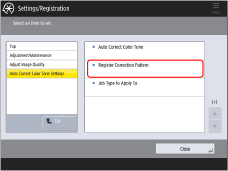
Calibrating for Paper You Want to Use for Printing
You need to calibrate the machine for the paper you will register as paper for calibration. Make sure you complete the procedure in "Required Calibration", even if you are not going to use "Canon Top Colour Zero FSC (100 g/m2)".
If you changed the registered paper depending on the thickness of the paper, prepare (two types of) paper with thicknesses you want to register.
This section explains how to create new standard values for calibration. You must use uncoated paper for the calibration even if you are using some type of paper other than uncoated paper for printing. If this is the case, use an uncoated paper that is as close as possible to the basis weight of the paper you are using for printing. For more information, see "How to Identify the Types of Paper You Can Use for Calibration" at the end of this document.
IMPORTANT
Before performing automatic color tone correction, you need to perform automatic gradation calibration. If automatic gradation calibration has already been done, proceed to step 7.
1
Load the paper you want to use for calibration.
Make sure that "Canon Top Colour Zero FSC (100 g/m2)" is also loaded properly for use, in addition to the paper you want to register as paper for calibration (one type or two types).
2
Change the paper type of the paper deck or drawer to match the paper type loaded in step 1.
"Basic Operations" > "Specifying Paper Size and Type" > "Specifying Paper Size and Type in the Paper Deck/Drawer" in the User's GuidePress → <Preferences> → <Paper Settings> → <Paper Settings> to set the paper type.
→ <Preferences> → <Paper Settings> → <Paper Settings> to set the paper type.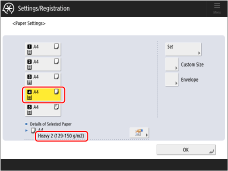
3
Register the paper you want to use for calibration.
"Maintenance" > "Adjusting Print and Finish Quality" > "Adjusting Gradation Automatically" in the User's Guide > see the subsection "Registering Paper for Calibration"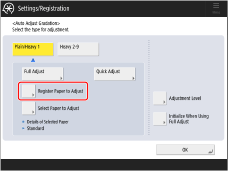


Select <Standard> for "the paper type selection (calibration standard)."
Select "the paper deck or drawer where you have loaded "Canon Top Colour Zero FSC (100 g/m2)"" for "the paper selection of a test page (calibration standard)."
Select "the paper deck or drawer where you have loaded the paper for calibration" for "the paper selection of a test page."
4
Select the paper you registered in step 3 for <Select Paper to Adjust>.
"Maintenance" > "Adjusting Print and Finish Quality" > "Adjusting Gradation Automatically" in the User's Guide > see the subsection "Selecting Paper for Calibration"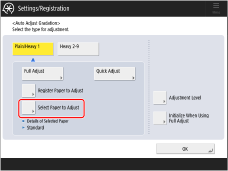

5
Confirm that the paper you registered in step 3 is selected.

6
Perform automatic gradation calibration (full calibration) with the paper registered for calibration.
"Maintenance" > "Adjusting Print and Finish Quality" > "Adjusting Gradation Automatically" in the User's Guide > see the subsection "Full Adjustment"Select the paper drawer in which the paper you registered as paper for calibration has been loaded as the paper source for test printing.

7
Create and register a new standard for automatic color tone correction.
"Maintenance" > "Adjusting Print and Finish Quality" > "Adjusting Color Tone" in the User's Guide > see the subsection "Creating a Color Adjustment Standard"Select the type of paper you will print on as the paper type that you will use for test printing.
Select the paper drawer in which the paper you registered as paper for calibration has been loaded as the paper source for test printing.
IMPORTANT
When standards for calibration are overwritten, the data is lost. Be careful not to overwrite the standard for calibration for "Canon Top Colour Zero FSC (81.4 g/m2)" when you register a new standard of calibration for the paper you can use for calibration.