5WRJ-003
How to Calibrate the imagePRESS Server
You need calibrations on the imagePRESS Server and according to the type of paper you use.
Use the recommended paper to adjust the calibration setting registered by default in the imagePRESS Server.
Add a new calibration setting for each type of paper you use, except for the recommended paper.
This describes the procedure for using an output profile with the calibration setting for the type of paper you use in printing.
Calibration on the imagePRESS Server
NOTE
You can use X-Rite i1 Pro 2 or X-Rite i1 Pro 3 as a manual spectrophotometer.
This section explains how to calibrate for "Canon Top Colour Zero FSC (100 g/m2)" by using a manual spectrophotometer (X-Rite i1 Pro 2). You need to connect the spectrophotometer to a machine on which Command WorkStation is installed. Note that doing these operations overwrites any calibration values that you have registered.
You may have to purchase the spectrophotometer separately from the imagePRESS Server. Contact your local authorized Canon dealer.
1
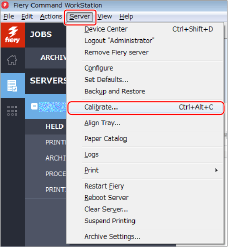
Click [Server] → [Calibrate] in Command WorkStation.
2
Select each item as follows and click [Continue].
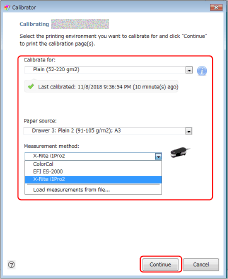
[Calibrate for]
Select the paper you will use for the calibration. (Select [Plain (52 to 350 g/m2)] here.)
[Paper source]
Select the paper drawer where you have loaded the paper. (Select the paper drawer where "Canon Top Colour Zero FSC (100 g/m2)" is loaded here.)
[Measurement method]
Select the calibration method. (Select [X-Rite i1 Pro 2] here.)
A calibration page is printed.
3
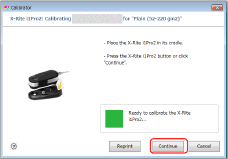
Place the spectrophotometer, X-Rite i1 Pro 2, on the cradle and click [Continue].
If you want to use a different spectrophotometer, see "How to Change the Manual Spectrophotometer for Use and the Calibration Page."
4
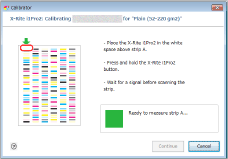
Place the sensor of the spectrophotometer on the calibration page.
Place several sheets of paper that is the same as the paper for the calibration so that the color or pattern of the surface where the calibration is done (such as a desk) does not show through, and place the calibration paper on the top.
Focus the sensor of the spectrophotometer on the white area indicated by the red frame in the image.
If you want to use a different calibration page, see "How to Change the Manual Spectrophotometer for Use and the Calibration Page."
5
Hold the spectrophotometer button and scan strip A.
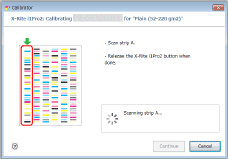
Hold the spectrophotometer button until you see [Scanning strip A]. Keep holding the button and move the spectrophotometer from the top to the bottom to scan strip A.
Release the button after you have finished scanning.
6
Scan strips B to F in the same way.
7
After [Measurements completed successfully.] appears, click [Continue].
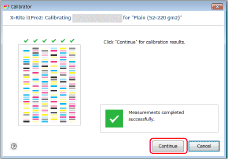
8
Check the scan result and then click [Apply & Close].
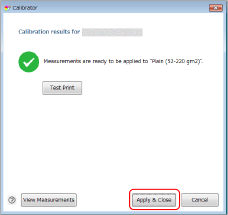
When you click [View Measurements], a chart of the scan result appears. Check that the curve in the scan result is not significantly different from the standard curve.
9
If necessary, calibrate for other types of paper in the same way.
Types of Paper for Printing
In step 2, select one of the following types of paper for [Calibrate for].
For the European and Asia-Pacific Regions
Canon Top Colour Zero FSC (100 g/m2): Plain (52 to 350 g/m2)
Canon OK Top Coated + (128 g/m2): Coated (106 to 350 g/m2)
For the American Region
Hammermill Color Copy Digital (28 lb bond (105 g/m2)): Plain (52 to 350 g/m2)
Canon OK Top Coated + (34 lb Cover (128 g/m2)): Coated (106 to 350 g/m2)
NOTE
The paper names are subject to change without notice. For more information, contact your local authorized Canon dealer.
Calibration on the Type of Paper You Use
This section explains how to calibrate for the type of paper you will use by using a manual spectrophotometer (X-Rite i1 Pro 2). You need to connect the spectrophotometer to a machine on which Command WorkStation is installed. You can print more accurately by linking the calibration setting for the type of paper with the output profile for use.
1
Click [Server] → [Device Center] in Command WorkStation.

The device center screen is displayed.
2
Click [Tools] → [Manage].

3
Click [Create New].
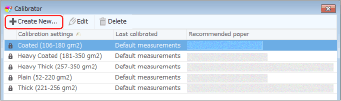
4
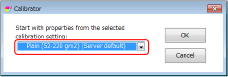
Select the paper type which is closest to the paper you will use, and click [OK].
If there is no appropriate paper type, select [Server default].
5
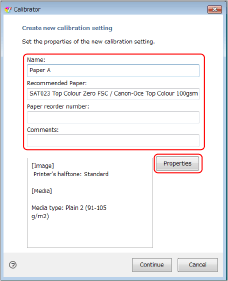
Enter the required information and click [Continue].
It will be easier to find the calibration settings if you enter specific characteristics of the paper you are calibrating, such as gloss value, in addition to basis weight and paper type.
Change the name to any name in [Name]. (Example: Paper A)
Click [Properties] to open the [MEDIA] tab. Check the settings in [Paper source], [Media type], and [Output paper size] to see if they are intended for the paper with which the calibration paper is printed.
6
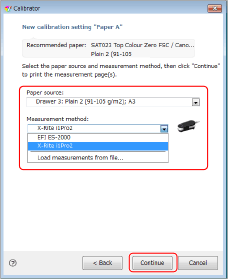
Select each item as follows and click [Continue].
[Paper source]
Select the paper drawer in which the paper you want to print on is loaded.
[Measurement method]
Select the calibration method. (Select [X-Rite i1 Pro 2] here.)
A calibration page is printed.
7
Place the spectrophotometer, X-Rite i1 Pro 2, on the cradle and click [Continue].
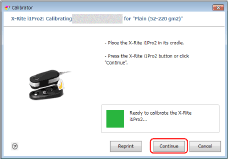
If you want to use a different spectrophotometer, see "How to Change the Manual Spectrophotometer for Use and the Calibration Page."
8
Place the sensor of the spectrophotometer on the calibration page.
Place several sheets of paper that is the same as the paper for the calibration so that the color or pattern of the surface where the calibration is done (such as a desk) does not show through, and place the calibration paper on the top.
Focus the sensor of the spectrophotometer on the white area indicated by the red frame in the image.
If you want to use a different calibration page, see "How to Change the Manual Spectrophotometer for Use and the Calibration Page."
9
Hold the spectrophotometer button and scan strip A.
Hold the spectrophotometer button until you see [Scanning strip A]. Keep holding the button and move the spectrophotometer from the top to the bottom to scan strip A.
Release the button after you have finished scanning.
10
Scan strips B to F in the same way.
11
After [Measurements completed successfully.] appears, click [Continue].
12
Link the calibration setting with the output profile and click [OK].
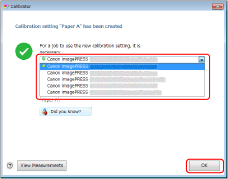
The calibration setting for the paper you want to print on is added to the list.
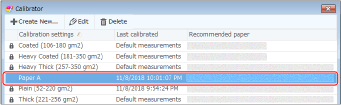
13
Click [Profiles] in the device center screen.
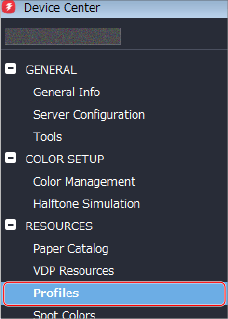
14
Click [Output Profiles] to display a list of profiles.
An output profile with the same name as the calibration setting you set up in step 5 appears in the list as the output profile for the paper you want to print on.
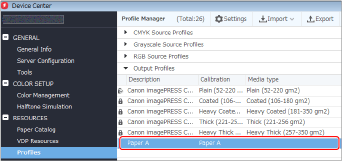
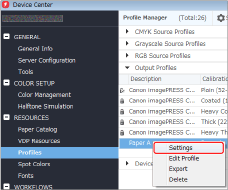
15
Right-click the output profile for the paper you are using, and click [Settings].
16
Select or enter the items as shown below, and click [OK].
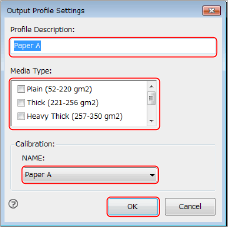
[Profile Description]
Enter a simple description to distinguish this profile from other profiles.
[Media Type]
If you want this output profile to be applied whenever a particular type of paper is used, select that type of paper.
[Calibration]
Select the calibration setting you created in steps 1 to 12 for the paper you want to print on.
After You Register the Calibration Setting in the Output Profile
Setting Output Profiles to a Job
You can set output profiles to each job in the imagePRESS Server. Follow the procedure below to use an arbitrary profile temporarily.
1
Double-click the job in Command WorkStation.
[Job Properties] is displayed.
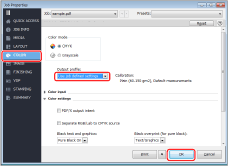
2
Select the [COLOR] tab, select any output profile in [Output Profile], and then click [OK].
Applying an Output Profile to Paper Catalog
1
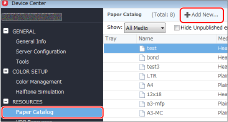
Click [Paper Catalog] → [Add New] in the device center screen.
2
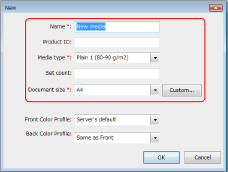
Register attributes of the paper you want to print on in the imagePRESS Server.
Set a name, type, and size of the paper.
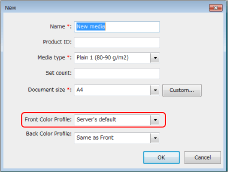
Select the output profile you set in step 16 in [Front Color Profile].
NOTE
If the front and back surfaces of the paper are different, you can select [Back Color Profile] and [Front Color Profile] separately.
For detailed information on the setting items, see the user manual or the Help for the imagePRESS Server.
3
Click [OK].
See "How to Create a Custom Output Profile" for information about how to use profile creation software to create output profiles.
Calibration Settings and Output Profiles
You need to link the output profile to the calibration settings to use them for the paper you want to print on. You can use a calibration setting with several output profiles, but each output profile must be linked with only a single calibration setting.
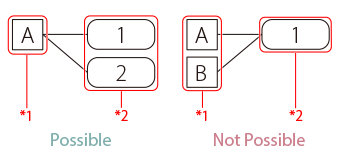
*1 Calibration setting
*2 Output profiles