CHYC-031
Connecting the Printer Driver and This Machine to a Network
Specify the printer driver port for this machine's IP address.
Perform steps 1 to 2 in order.
If you follow the procedure correctly but still cannot connect, check the connection to the device. If You Have Problems Connecting to the Machine
NOTE
Screens may differ depending on your model and the installed options.
Screens may differ depending on your computer system and driver type/version.
Step 1: Checking this Device's IP Address
When you connect this machine to a network, it requires its own unique IP address within that network. Two IP address versions are supported: IPv4 and IPv6. The machine can use either IPv4 or IPv6, or it can use both concurrently.
Checking the IPv4 Address
1
Log in as an administrator on this machine's control panel. Logging In as an Administrator
2
On the <Home> screen, press  (Settings/Registration).
(Settings/Registration).3
Press <Preferences>  <Network> <TCP/IP Settings> <IPv4 Settings>.
<Network> <TCP/IP Settings> <IPv4 Settings>.4
Press <IP Address Settings> and check the IP address.
5
Press <OK> <Close>.
<Close>.Checking the IPv6 Address
1
Log in as an administrator on this machine's control panel. Logging In as an Administrator
2
On the <Home> screen, press (Settings/Registration).
(Settings/Registration).3
Press <Preferences> <Network> <TCP/IP Settings> <IPv6 Settings>.
<Network> <TCP/IP Settings> <IPv6 Settings>.4
Check the IPv6 address as required by your environment or purpose.
Check the stateless address
1
Press <Stateless Address Settings>.
2
Check the settings and press <OK>.
Check the manual address
1
Press <Manual Address Settings>.
2
Check the settings and press <OK>.
Check the stateful address
1
Press <Use DHCPv6>.
2
Check the settings and press <OK>.
5
Press <Close>.
Step 2: Setting the Driver Port
Setting the Driver Port (Windows 10)
IMPORTANT
When starting up your computer, always log in as an Administrator.
NOTE
LPR is the protocol generally used over TCP/IP. To specify the use of LPR on the printer as a condition such as forced hold, specify LPR in the driver here also.
Raw is a protocol that can be used in Windows. It provides faster data transfer than LPR.
1
Select [ Start] [
 Settings] on the computer.
Start] [ Settings] on the computer.2
Click [Devices] [Printers & scanners].
[Printers & scanners].3
Click the icon for your device and then click [Manage].
4
Click [Printer properties].
5
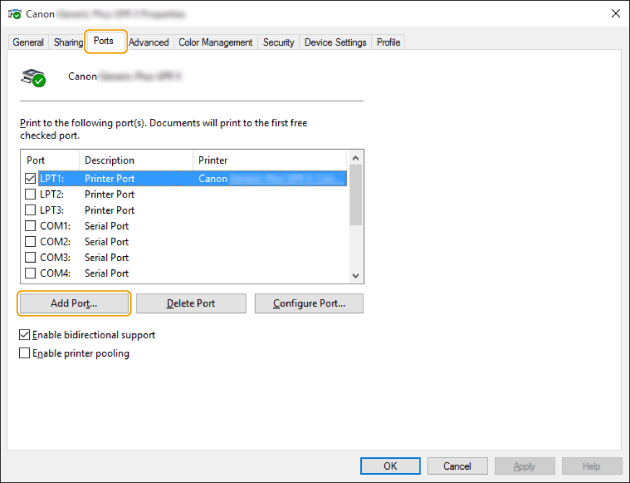
On the [Ports] tab, click [Add Port].
6
In [Available port types], select [Standard TCP/IP Port] and click [New Port].
7
Click [Next].
8
Enter the [Printer Name or IP Address] and click [Next]
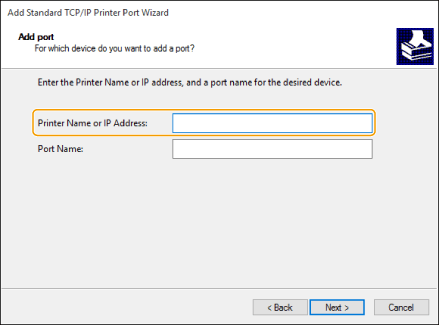
In [Printer Name or IP Address], enter the IP address for this machine. Step 1: Checking this Device's IP Address
The [Port Name] is entered automatically. Change the port name as needed.
NOTE
If the [Additional port information required] screen appears, take either of the following steps:
Return to the previous page in the wizard and re-enter the [Printer Name or IP Address]. Then click [Next].
In [Device Type], select [Regular] and select [Canon Network Printing Device with P9100] from the pull-down menu. Then click [Next].
Depending on your model, the name selected in [Device Type] [Regular] may not be [Canon Network Printing Device with P9100].
Depending on your model, the name selected in [Device Type]
[Regular] may not be [Canon Network Printing Device with P9100].9
Click [Finish].
10
In the [Printer Ports] dialog box, click [Close].
To use LPR, proceed to step 11.
To use Raw, proceed to step 13.
11
Click [Configure Port].
12
In [Protocol], select [LPR] and enter the [Queue Name] in [LPR Settings].
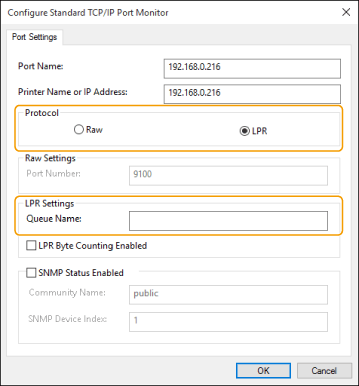
In [Queue Name] you can specify any of the following print queue names:
"LP": Output according the machine's spool settings. This setting should normally be used.
"SPOOL": Output is always after the data is spooled on the hard disk, regardless of the device settings.
"DIRECT": Output is always without spooling data on the hard disk, regardless of the machine settings.
13
Click [Close].
Setting the Driver Port (macOS)
If the IP address of the machine and that of the Mac do not match, briefly delete the machine and then re-enter the correct IP address before re-registering the machine.
Checking the Mac's IP Address
1
Click [ ] [About This Mac].
] [About This Mac].2
In the [Overview] tab, click [System Report...].
3
In [Hardware], click [Printers].
4
In [Queue Name], select your machine.
5
Check that the IP address shown in [URI] is the same as this machine's IP address. Step 1: Checking this Device's IP Address
Deleting the Machine
1
Open [System Preferences] and click [Printers & Scanners].
2
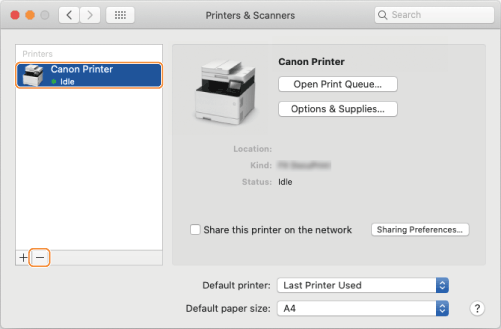
Select your device and then click [-].
Registering the Machine
1
Open [System Preferences] and click [Printers & Scanners].
2
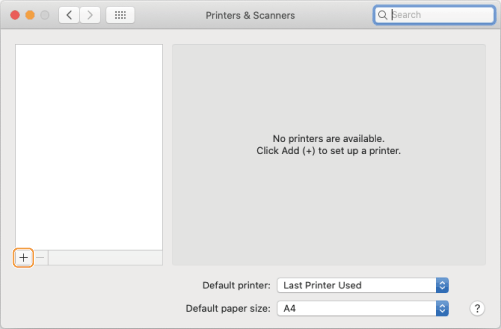
Click [+] at the bottom of the displayed dialog box.
If a pull-down button appears when you click [+], select [Add Printer or Scanner].
3
Register this Machine
TCP/IP connection
1
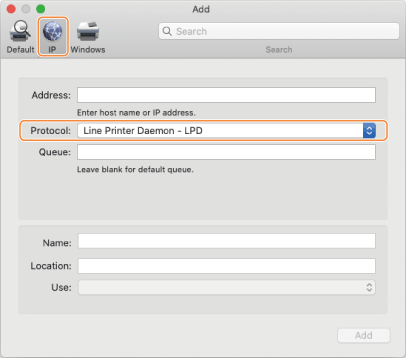
Click [IP] in the toolbar and select [Line Printer Daemon – LPD] in [Protocol].
2
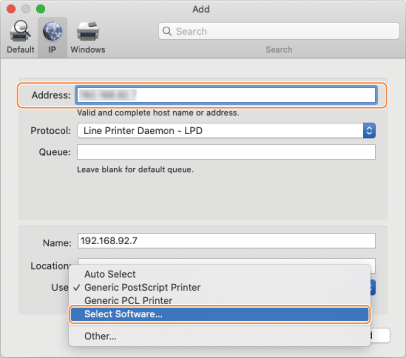
Enter this machine's IP address in [Address] and select [Select Software] in [Use].
If a driver that supports the printer is displayed in [Use], proceed to step 6.
NOTE
Even if you enter the correct IP address, an "Incorrect address" message may appear.
Bonjour connection
1
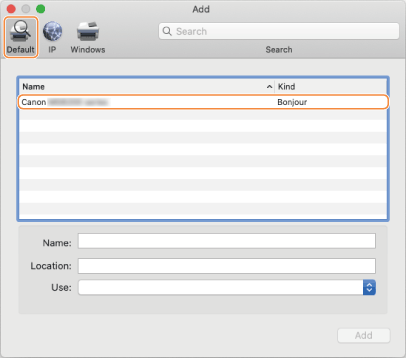
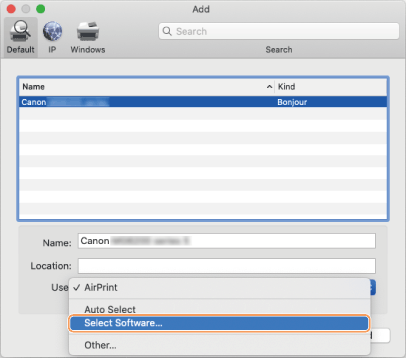
Click [Default] in the toolbar and select this machine from the list.
Select a printer that has "Bonjour" displayed in [Kind].
2
Select [Select Software] in [Use].
If a driver that supports the printer is displayed in [Use], proceed to step 7.
4
Check for a printer driver that supports this machine.
If you do not know the name of the driver for this machine, refer to the Readme file.
5
Select this machine from the list in the [Printer Software] dialog box and click [OK].
6
If necessary, change the [Name] for this machine and click [Add].
7
Check that this machine and its type appear in the dialog box.
If you have any optional equipment installed on the machine, check the options in [Options & Supplies] [Utility] [Open Printer Utility] [Printer Information] [OK].
[Utility] [Open Printer Utility] [Printer Information] [OK].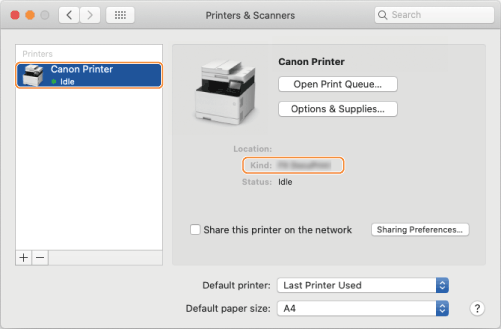
If You Have Problems Connecting to the Machine
If you have problems connecting to the machine, run the following checks:
Check communication from the computer to the machine.
Send a ping command from the computer to check communication with the machine.
Windows 10
Open [ Start] [Windows System] [Command Prompt], type "PING Printer IP address" and press "Enter."
Start] [Windows System] [Command Prompt], type "PING Printer IP address" and press "Enter."If your computer can communicate with the device, the "Reply from printer IP address: Byte count = xx (time) < xms TTL=xx" four-line message appears.
Mac OS X
Click your hard disk [Applications] [Utility] [Terminal], type "PING Printer IP address" and press "Enter."
[Applications] [Utility] [Terminal], type "PING Printer IP address" and press "Enter."If your computer can communicate with the machine, the "xx bytes from printer IP address:icmp_seq=xx ttl=xx time=x ms" message appears.
If you cannot communicate with the machine
If your computer cannot communicate with the machine, a message other than "xx bytes from printer IP address" appears. Such messages include "Request timed out," "Destination host unreachable," and "Data transfer failed." In this event, try pinging another network device.
If you can communicate with other network devices, check the items in the "Device checklist" below.
If you cannot communicate with other network devices, Check the physical connections on the network and check the network settings for the devices.
Device checklist
If you are unable to communicate with this machine only, check the following:
Physical connections to the machine and to the network
Check that this machine is correctly connected to the network via a network cable.
Turn the mains power to the machine off and then on again.
Turning the mains power off and on again will validate any changes to TCP/IP settings on the machine.
MAC address filter settings
The machine's TCP/IP settings include the MAC address filter setting. To block data transfer between this product and the device with the specified MAC address, specify the MAC address (the MAC address to be blocked) with "Permit" set as the default policy for the send filter or receive filter. This will mean that data cannot be transferred between this machine and the device with the specified MAC address. To enable data transfer with the device with the specified MAC address only, specify the MAC address (the MAC address to be permitted) with "Block" set as the default policy for the send filter or receive filter. This will mean that this machine can only exchange data with the device with the specified MAC address.
If <Use Filter> is set to <On> in (Settings/Registration) <Preferences> <Network> <Firewall Settings> <MAC Address Filter> <Outbound Filter> or <Inbound Filter>, check the following:
(Settings/Registration) <Preferences> <Network> <Firewall Settings> <MAC Address Filter> <Outbound Filter> or <Inbound Filter>, check the following:If the <Default Policy> is <Allow>, data transfer is blocked if your computer's MAC address is registered.
If the <Default Policy> is <Reject>, data transfer is permitted if your computer's MAC address is registered.