CHYE-041
Logging in Using the Control Panel
This section describes how to log in using this machine's control panel.
If the login screen appears, a registered authorized user must log in to continue using the machine. The content displayed on the login screen differs depending on the user management settings, and users should proceed according to the displayed content.
NOTE
If an Auto Reset Time has been set, you are automatically logged out when an auto reset occurs.
If a User List Appears (Picture Login)
Press your user name. If you have a PIN or pattern, enter your PIN or pattern next, and then press <OK>  <Log In>.
<Log In>.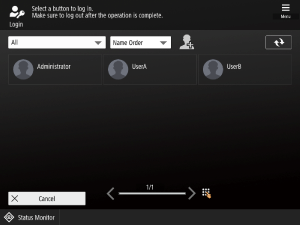
NOTE
You can change the order in which user names are displayed or filter out user names from the drop-down list at the top of the screen. If you select <Print> from the top-left drop-down list, the list only shows users who are not running entered print jobs.
Log out after you finish using this machine.
If added users do not appear on the screen, press  at the top right of the screen.
at the top right of the screen.You can move forward to the next page or back to previous pages by moving the slider at the bottom center of the login screen to the left or right.
Pressing the numeric keys on the login screen displays the <Move Page Position> screen, which lets you enter a page number and jump to that page.
Logging in When the User Name and Password Input Screen Appears
Use the keyboard displayed on the screen to enter the user name and password.
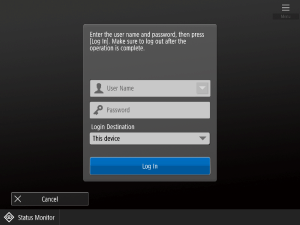
1
Press <User Name>.
If your login user information is still cached, you can select your user name from a drop-down list using your past login history. Once you have selected the user name, press <User Name> and proceed to step 3.
2
Enter your user name and press <Next>.
3
Enter your password and press <OK>.
4
Select your login destination from the <Login Destination> drop-down list and press <Log In>.
You can access the machine's functions once you have successfully logged in.
Log out after you finish using this machine.
NOTE
Adding options lets you to log in using an IC card or copy card.
Logging in as a Guest User
Press <Log In (Guest)>.
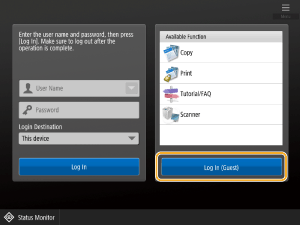
You can access the machine's functions once you have successfully logged in.
Log out after you finish using this machine.
NOTE
The available functions are determined by per the restrictions specified for the Guest User role.