CHYE-035
Connecting a Mobile Device to This Machine Without Using a Wireless LAN Router
This section describes how to make a wireless connection directly from a mobile device to this machine (Access Point Mode/Wi-Fi Direct).
Use the procedure below to connect in Access Point Mode.
Use the procedure below to connect using Wi-Fi Direct.
Configuring the Connection Mode for Access Point Mode
Access Point Mode has three connection modes. Select the mode that best suits your purposes.
Fixed Mode
This mode uses a set SSID and network key every time. Because the SSID and network key are fixed, once the initial connection has been set up, no setup is required for subsequent connections. Up to five mobile devices can be connected at the same time. However, because previously connected mobile devices may be automatically reconnected, the limit on the number of devices may be reached and this may prevent you from connecting new mobile devices.
To set the machine to Fixed Mode
1
Log in as an administrator on this machine's control panel. Logging In as an Administrator
2
On the <Home> screen, press  (Settings/Registration).
(Settings/Registration).3
Press <Preferences>  <Network> <Direct Connection Settings> <Use Direct Connection>.
<Network> <Direct Connection Settings> <Use Direct Connection>.4
Press <On> <OK>.
<OK>.5
Press <Access Point Mode Settings>.
6
Specify each of the settings and press <OK>.
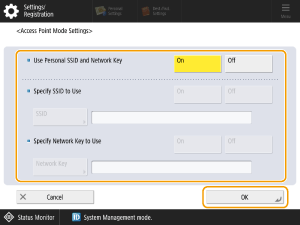
In <Use Personal SSID and Network Key>, select <Off>.
In <Specify SSID to Use>, select <On> and enter the SSID.
In <Specify Network Key to Use>, select <On>and enter the network key.
NOTE
You can specify an SSID of up to 32 characters.
Specify a network key of 10 characters.
7
Press <Close>.
One-Time Mode
In this mode, you create a different SSID and network key each time. Because the SSID and network key are different each time, you need to select an SSID and enter a network key for every connection. Previously connected mobile devices are not automatically reconnected, so you can be confident of being able to connect the next mobile device.
To set the machine to One-Time Mode
1
Log in as an administrator on this machine's control panel. Logging In as an Administrator
2
On the <Home> screen, press (Settings/Registration).
(Settings/Registration).3
Press <Preferences> <Network> <Direct Connection Settings> <Use Direct Connection>.
<Network> <Direct Connection Settings> <Use Direct Connection>.4
Press <On> <OK>.
<OK>.5
Press <Access Point Mode Settings>.
6
Specify each of the settings and press <OK>.
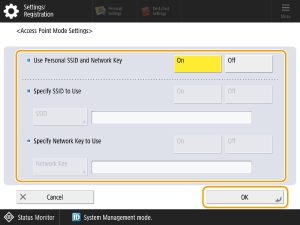
In <Use Personal SSID and Network Key>, select <Off>.
In <Specify SSID to Use>, select <Off>.
In <Specify Network Key to Use>, select <Off>.
7
Press <Close>.
Personalized Mode
In this mode, each connected user has their own SSID and network key. Because the SSID and network key are fixed for each user, once the initial connection has been set up, no setup is required for subsequent connections. Mobile devices other than the personalized device are not automatically reconnected, so you can be confident of being able to connect the next mobile device.
To set the machine to Personalized Mode
IMPORTANT
Personalized Mode is only enabled when you are running Personal Authentication Management. Open Personal Authentication Management beforehand.
Because an SSID and network key are specified for each user, the user privileges (role setting) must be set to <Administrator> or <NetworkAdmin> during authenticated user registration.
This machine is connected to a mobile device on a one-to-one basis. You cannot connect two mobile devices concurrently.
1
Log in as an administrator on this machine's control panel. Logging In as an Administrator
NOTE
When the Settings/Registration screen appears, select <Personal Settings>. If you select <Device Settings>, you will not be able to enter a personalized SSID or network key.
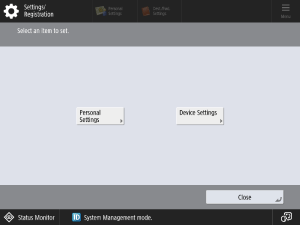
2
On the <Home> screen, press (Settings/Registration).
(Settings/Registration).3
Press <Preferences> <Network> <Direct Connection Settings> <Use Direct Connection>.
<Network> <Direct Connection Settings> <Use Direct Connection>.4
Press <On> <OK>.
<OK>.5
Press <Access Point Mode Settings>.
6
In <Use Personal SSID and Network Key>, press <On> <OK>.
<OK>.7
Press <Personal SSID and Network Key Settings>.
8
Enter the SSID and network key and then press <OK>.
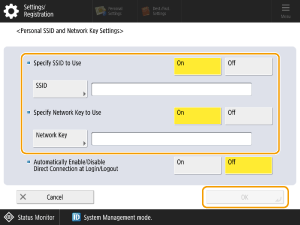
NOTE
You can specify an SSID of up to 32 characters.
Specify a network key of 10 characters.
9
Press <Close>.
Preparing to Connect This Machine to a Mobile Device
1
Check the network settings for this machine.
Set (Settings/Registration) <Preferences> <Network> <TCP/IP Settings> <IPv4 Settings> <Use IPv4> to <On>.
(Settings/Registration) <Preferences> <Network> <TCP/IP Settings> <IPv4 Settings> <Use IPv4> to <On>.2
Prepare the mobile device.
Configure the mobile device so that it can connect via Wi-Fi.
3
Prepare to connect this machine.
Set (Settings/Registration) <Preferences> <Network> <Direct Connection Settings> <Use Direct Connection> to <On>.
(Settings/Registration) <Preferences> <Network> <Direct Connection Settings> <Use Direct Connection> to <On>.In (Settings/Registration) <Preferences> <Network> <Direct Connection Settings> <Direct Connection Type>, select <Access Point Mode> or <Wi-Fi Direct>.
(Settings/Registration) <Preferences> <Network> <Direct Connection Settings> <Direct Connection Type>, select <Access Point Mode> or <Wi-Fi Direct>.On the <Home> screen <Mobile Portal> <Direct Connection>, press <Connect>.
<Mobile Portal> <Direct Connection>, press <Connect>.NOTE
If (Settings/Registration) <Preferences> <Network> <Select Interface> <Wireless LAN> or <Wired LAN + Wireless LAN> is selected, <Wi-Fi Direct> cannot be used in <Direct Connection Type>.
(Settings/Registration) <Preferences> <Network> <Select Interface> <Wireless LAN> or <Wired LAN + Wireless LAN> is selected, <Wi-Fi Direct> cannot be used in <Direct Connection Type>.If (Settings/Registration) <Preferences> <Network> <Direct Connection Settings> <Personal SSID and Network Key Settings> <Automatically Enable/Disable Direct Connection at Login/Logout> is set to <On>, direct connection at login is now enabled even without pressing <Connect> of <Direct Connection> in <Mobile Portal>.
(Settings/Registration) <Preferences> <Network> <Direct Connection Settings> <Personal SSID and Network Key Settings> <Automatically Enable/Disable Direct Connection at Login/Logout> is set to <On>, direct connection at login is now enabled even without pressing <Connect> of <Direct Connection> in <Mobile Portal>.Connecting Directly (Access Point Mode)
NOTE
It may take some time for this machine to finish connecting to the mobile device.
Connecting Manually
1
Use the SSID and network key information shown on this machine's control panel to configure the destination from the mobile device in the wireless LAN connection settings.
2
Once you have completed the desired procedure, press <Disconnect>.
Connecting with Canon PRINT
Canon PRINT is a free app that enables iOS or Android terminals to use a Canon laser multifunction printer or laser printer to print photos or documents, import scanned files, or upload files to a cloud storage service. You can use this app by downloading it to your mobile device from an app store. The available functions differ depending on your mobile device and the settings on this machine.
NOTE
See the dedicated manual for more information on using Canon PRINT (https://global.canon/gomp/).
Connecting Using a QR Code
NOTE
Enable the QR code display function on this machine.
On the <Home> screen, press <Mobile Portal> and display the QR code.
<Mobile Portal> and display the QR code.On the <Home> screen, press <Mobile Portal> and open <Direct Connection>.
<Mobile Portal> and open <Direct Connection>.Check that the mobile device's rear camera is switched on.
1
Open Canon PRINT on the mobile device.
NOTE
To connect to a device running iOS (iOS11 or later), open the standard camera app on the mobile device.
2
Scan the QR code on this machine's control panel.
3
Once you have completed the desired procedure, press <Disconnect>.
NOTE
If the "Wi-Fi settings" screen appears (iOS only)
Follow the the on-screen instructions to connect to the specified network in the iOS Wi-Fi settings.
Connecting via Bluetooth
NOTE
Depending on when you purchased the machine, you may not be able to use the Bluetooth function.
Check that the optional "Connection Kit for Bluetooth LE" is installed on this machine.
On the <Home> screen, press <Mobile Portal> and open <Direct Connection>.
<Mobile Portal> and open <Direct Connection>.Enable Bluetooth on the mobile device.
Specify the [User Information] in Canon PRINT. Note that [Log In (Guest)] should be disabled.
1
On the <Home> screen, press (Settings/Registration).
(Settings/Registration).2
Set <Preferences> <Network> <Bluetooth Settings> <Use Bluetooth> to <On>.
<Network> <Bluetooth Settings> <Use Bluetooth> to <On>.3
Open Canon PRINT on the mobile device.
4
Enable Bluetooth on the mobile device.
5
Move the mobile device nearby to this machine.
When the device name and PIN code appear on this machine's control panel, use this information to set up pairing on the mobile device.
6
Once you have completed the desired procedure, press <Disconnect>.
Connecting via NFC
NOTE
Depending on the time of purchase of your machine, you may not be able to use NFC function.
Only supported in the Android version.
On the <Home> screen, press <Mobile Portal> and open <Direct Connection>.
<Mobile Portal> and open <Direct Connection>.Enable NFC on the mobile device.
1
On the <Home> screen, press (Settings/Registration).
(Settings/Registration).2
Set <Management Settings> <Device Management> <Use NFC Card Emulation> to <On>.
<Device Management> <Use NFC Card Emulation> to <On>.3
Open Canon PRINT on the mobile device.
4
Enable NFC on the mobile device.
5
Move the mobile device nearby to the NFC icon on this machine.
6
Once you have completed the desired procedure, press <Disconnect>.
Printing from Mobile Devices
This section describes the procedure for printing files saved on a mobile device.
1
On the Canon PRINT home screen, tap [Document].
2
Tap [Local].
3
Tap the file name and open the Document Preview screen.
NOTE
If you select a PDF file and the [This file is password protected] message appears, enter the password specified for the PDF file.
4
The [Preview] window appears on the Document Preview screen.
5
Tap [Print].
IMPORTANT
Depending on your mobile device, you may not be able to connect to the Internet while you are directly connected to this machine.
If no wireless connection from a mobile device is established within five minutes while the SSID and network key are displayed, the Waiting to Connect status ends.
If there is a continued period in which no data is exchanged between this and the mobile device during communication via direct connection, the connection may end.
If this machine is used with a wireless LAN, you must keep this machine connected to the wireless LAN when using direct connection. You cannot initiate a direct connection when this machine is not connected to a wireless LAN or has not yet finished connecting to the LAN. If the connection between this machine and the wireless LAN is lost during communication through direct connection, the communication may end.
Once you have completed the desired procedure, be sure to end the connection between this machine and the mobile device. Leaving them connected will degrade the power savings in Sleep mode.
The power savings in Sleep mode are reduced during direct connection. Once you have completed the desired procedure, be sure to terminate the connection between this machine and the mobile device.
Connecting Directly (Wi-Fi Direct)
Connect From a Mobile Device to This Machine
1
Open Direct Connection on the mobile device.
From the Wi-Fi settings screen on the mobile device, open the Wi-Fi Direct screen and tap this machine among the Wi-Fi Direct devices detected.
A message appears on this machine's control panel indicating that it has received a connection request from the mobile device.
2
Press <Yes> on this machine's control panel.
A connection between this machine and the mobile device is established.
3
Once you have completed the desired procedure, press <Disconnect>.
Connecting From This Machine to a Mobile Device
1
Select the name of the device to be directly connected to from the device names shown on this machine's control panel and then press <Connect>.
A screen appears in which you can choose whether to allow connections with the mobile device.
2
Tap [Yes] on the mobile device screen.
A connection between this machine and the mobile device is established.
3
Once you have completed the desired procedure, press <Disconnect>.
NOTE
For details on linking with mobile devices, see the Setup for Linking with Mobile Devices Administrator Guide.
To check the connected mobile devices, press <Mobile Dev. Info> on the <Direct Connection> screen.
IMPORTANT
Depending on your mobile device, you may not be able to connect to the Internet while you are directly connected to this machine.
If no wireless connection from a mobile device is established within five minutes while the device name is displayed, the Waiting to Connect status ends.
If there is a continued period in which no data is exchanged between this machine and the mobile device during communication via direct connection, the connection may end.
Once you have completed the desired procedure, be sure to end the connection between this machine and the mobile device. Leaving them connected will degrade the power savings in Sleep mode.
The power savings in Sleep mode are reduced during direct connection. Once you have completed the desired procedure, be sure to terminate the connection between this machine and the mobile device.