Offline Authentication
If the computer on which you want to use the local license server is not connected to the Internet, select [Offline Authentication] from the [License Authentication] window.
|
NOTE
|
|
Your server administrator should perform this procedure on the local license server.
|
Creating a User Information File
1.
Execute the "Start-FloatingLicenseInformationManagement.vbs" file in the "LicenseTools" > "<language name>" folder you copied to a local folder of your choice.
Floating License Information Manager is started.
|
NOTE
|
|
Floating License Information Manager can also be started from the Floating License Installation Media. In this case, double-click the "Start-FloatingLicenseInformationManagement.vbs" file in the "LicenseTools" > "<language name>" folder.
|
2.
Click [Acquire] in [Authentication].

3.
Select [Offline Authentication] > [Create User Information], and click [Next].

4.
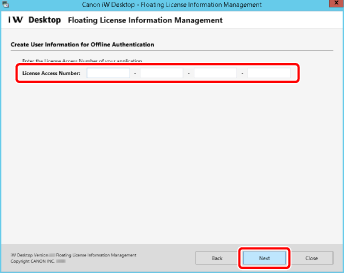
Enter the License Access Number for Desktop, and click [Next].
|
NOTE
|
|
Enter the License Access Number as 16 (4 groups of 4 characters) alphanumeric characters. The number is not case-sensitive.
Your License Access Number can be found in the material included in the product package of Desktop.
|
5.
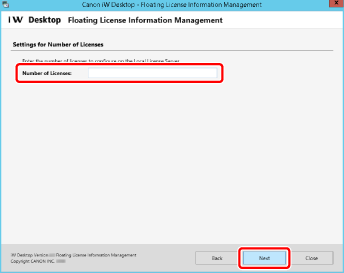
Enter the number of Desktop licenses to register in the local license server and click [Next].
6.
Check the content of the License Agreement (User Registration), select [I accept the terms in the license agreement] if you agree, and then click [Next].

7.
Check the content of the License Agreement (Canon Software Assurance(CSA)). Select [I accept the terms in the license agreement] if you agree, and then click [Next].

8.
Enter the user information, and click [Next].

9.
Click [Create].

The User Information File (*.json) is saved.
|
NOTE
|
|
You can also select a folder in the [Browse For Folder] dialog box that is displayed when [Browse] is clicked. Alternatively, in the [Browse For Folder] dialog box, you can create a new folder and select it.
You can change the file name. However, the following symbols cannot be entered: \ / : * ? " < > | ; . & % '
|
10.
Click [Exit].
Requesting a License Information File to Be Issued
1.
Contact your Canon dealer and check the method for sending the User Information File (*.json).
2.
Follow the directions to send the User Information File (*.json) to your Canon dealer.
3.
Acquire the issued License Information File (*.json) from your Canon dealer.
Creating a Request Data File
1.
Execute the "Start-FloatingLicenseInformationManagement.vbs" file in the "LicenseTools" > "<language name>" folder you copied to a local folder of your choice.
Floating License Information Manager is started.
|
NOTE
|
|
Floating License Information Manager can also be started from the Floating License Installation Media. In this case, double-click the "Start-FloatingLicenseInformationManagement.vbs" file in the "LicenseTools" > "<language name>" folder.
|
2.
Click [Acquire] in [Authentication].

3.
Select [Offline Authentication] > [Read License Information/Create Request Data], and click [Next].

4.
Select the License Information File issued by your Canon dealer in [Browse], and click [Next].

5.
Click [Create].

The Request Data File (*.bin) is saved.
|
NOTE
|
|
You can also select a folder in the [Browse For Folder] dialog box that is displayed when [Browse] is clicked. Alternatively, in the [Browse For Folder] dialog box, you can create a new folder and select it.
You can change the file name. However, the following symbols cannot be entered: \ / : * ? " < > | ; . & % '
|
Requesting a Response File to Be Issued
1.
Contact your Canon dealer and check the method for sending the Request Data File (*.bin).
2.
Follow the directions to send the Request Data File (*.bin) to your Canon dealer.
3.
Acquire the issued Response File (*.bin) from your Canon dealer.
Reading a Response File
1.
Start a browser on the local license server, and enter "http://localhost:8080/fneserver " in the address bar.
FlexNet Device Manager is started.
2.
Select "Offline Server Updates" from FNE Server.

3.
Select the Response file issued by your Canon dealer in [Browse], and click [Upload].
