Reducing Margins in Document Binder
If you use [Reduce Margins] in the Toolbar in Document Binder, you can reduce the margins of the document you are editing.
|
Note
|
|
For more information on margins, see the following.
If a document consists of only one page, you cannot use [Reduce Block Margins on Consecutive Pages] or the [Reduce Block Margins on Consecutive Pages] menu in
 (Reduce Block Margins on Original Pages). (Reduce Block Margins on Original Pages).If buttons are not displayed on the Document Binder Toolbar, set the buttons on the Toolbar. For more information, see the following.
|
Reducing the Margins of Consecutive Pages
1.
Open the binder document in Document Binder to reduce its margins.
When reducing the margins of a specific range of pages, select those pages.
If no page is selected, the margins of all pages are reduced.
2.
Click the  in the (Reduce Block Margins on Original Pages) icon on the Toolbar, and select
  on the displayed menu.
in the (Reduce Block Margins on Original Pages) icon on the Toolbar, and select on the displayed menu.Or, select the [Tools] menu > [Reduce Block Margins on Original Pages] > [Reduce Block Margins on Consecutive Pages].
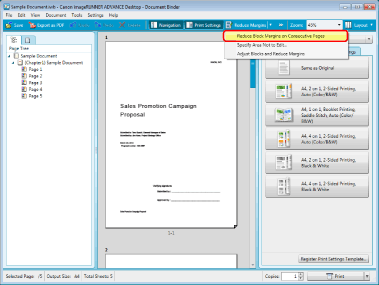
A confirmation message is displayed.
|
Note
|
|
If 100 or more pages are selected, only the margins of the first 100 pages are reduced.
|
3.
Click [Yes].
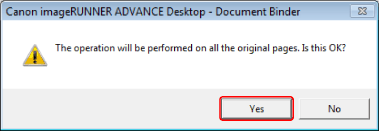
The margins are reduced.
When the process is completed and the margins of one or more pages are reduced, a processing result message is displayed.
When operating [Reduce Block Margins on Consecutive Pages] with Document Binder, generated blank pages are deleted automatically.
4.
Click [OK].
|
Note
|
|
For information on how to reduce all margins in Object Layout Editor, see the following.
After reducing margins, you can undo the operation by selecting the [Edit] menu > [Undo].
The following pages are not counted as targets when reducing block margins on consecutive pages, and so the objects on these pages are not moved.
Pages with attached annotations
Table of Contents pages
Pages with attached variable fields
|
Adjusting Blocks to Reduce Margins
You can adjust blocks to reduce margins.
1.
Click the in the (Reduce Block Margins on Original Pages) icon on the Toolbar, and select  on the displayed menu.
in the (Reduce Block Margins on Original Pages) icon on the Toolbar, and select on the displayed menu.Object Layout Editor starts in the block edit mode.
For more information on how to reduce margins by editing blocks with Object Layout Editor, see the following.
Setting Areas That Cannot Be Edited
By specifying an area in which editing cannot be performed in a document, you can fix objects within that area or delete them and reduce the margins. You can also not specify an area in which editing cannot be performed.
By setting areas where editing cannot be performed around headers, footers, etc., you can reduce the margins of the document more efficiently.
1.
Click the in the (Reduce Block Margins on Original Pages) icon on the Toolbar, and select  on the displayed menu.
in the (Reduce Block Margins on Original Pages) icon on the Toolbar, and select on the displayed menu.The [Specify Area Not to Edit] dialog box is displayed. For more information, see the following.