Copying Images and Text
Images and text (objects) can be copied or be cut, and they can be pasted in another location in the Edit Original Pages Mode of Desktop Editor.
|
NOTE
|
|
If a table of contents page created with Desktop Editor is updated, changes to the table of contents page are lost.
Objects copied/cut with the Edit Original Pages Mode can only be pasted into documents copied/cut in the Edit Original Pages Mode.
|
Copying the Content of Text Objects
This section describes how to copy the content of text objects.
1.
Double-click the desired text object in the Work Window.
The shape of the mouse pointer changes to  .
.
.2.
Select the range to copy in the text.
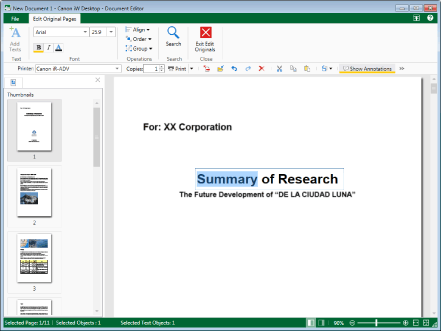
3.
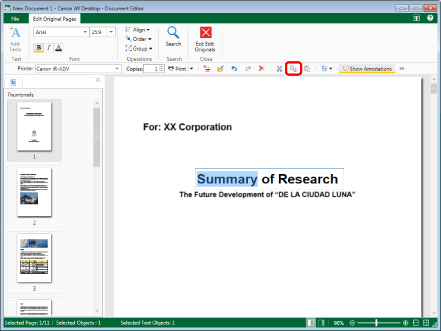
Click  (Copy) on the toolbar.
(Copy) on the toolbar.Or, right-click and select [Copy].
|
NOTE
|
|
If tool buttons are not displayed on the toolbar of Desktop Editor, see the following to display them.
|
4.
Paste the content of the copied text object, as necessary.
For details on pasting operations, see the following.
Cutting the Content of Text Objects
This section describes how to cut the content of text objects.
1.
Double-click the desired text object in the Work Window.
The shape of the mouse pointer changes to .
.2.
Select the range to cut in the text.
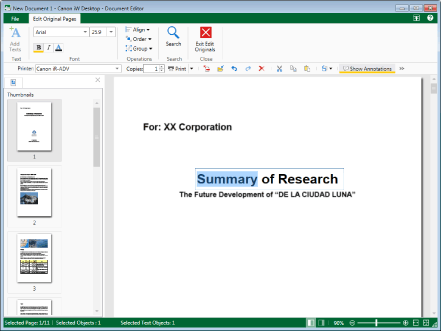
3.
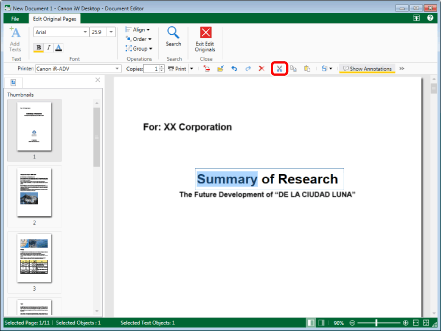
Click  (Cut) on the toolbar.
(Cut) on the toolbar.Or, right-click and select [Cut].
|
NOTE
|
|
If tool buttons are not displayed on the toolbar of Desktop Editor, see the following to display them.
|
4.
Paste the content of the cut text object, as necessary.
For details on pasting operations, see the following.
Pasting the Content of Text Objects
1.
Double-click the destination text object.
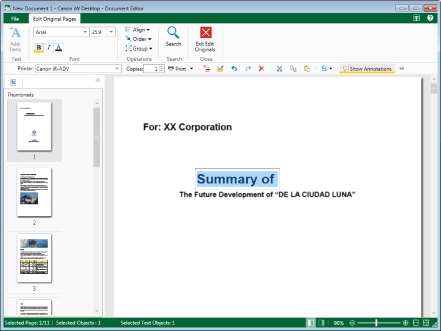
The shape of the mouse pointer changes to .
.2.
Specify the position to paste, and click  (Paste) on the toolbar.
(Paste) on the toolbar.Or, right-click and select [Paste].
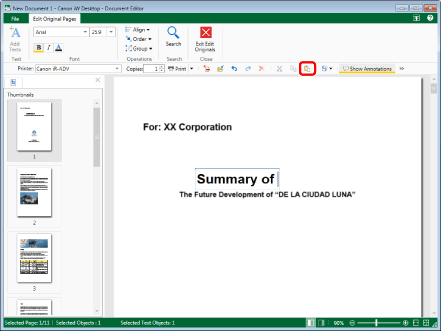
The content of the text object is pasted.
|
NOTE
|
|
If tool buttons are not displayed on the toolbar of Desktop Editor, see the following to display them.
If you double-click the destination text object and paste the content of a text object, the same font as the destination text object is specified.
For information on setting the font, see the following.
Areas that protrude outside the page area are deleted.
|
Copying Objects
This section describes how to copy objects.
1.
Click the object to copy in the Work Window.
Or, drag the mouse pointer selection rectangle to include the object to copy.
|
NOTE
|
|
To select all the objects on the page, right-click and select [Select All].
You can also click
 (Select All) displayed on the toolbar to perform the same operation. If tool buttons are not displayed on the toolbar of Desktop Editor, see the following to display them. (Select All) displayed on the toolbar to perform the same operation. If tool buttons are not displayed on the toolbar of Desktop Editor, see the following to display them.Multiple objects can be selected by clicking them while holding down the [Shift] or [Ctrl] key on the keyboard.
If you select an object in the Work Window, the total number of selected objects and the number of text objects are displayed on the status bar.
|
2.
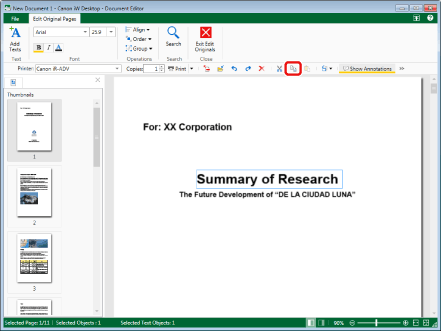
Click (Copy) on the toolbar.
(Copy) on the toolbar.Or, right-click and select [Copy].
3.
Paste the copied object, as necessary.
For details on pasting operations, see the following.
Cutting Objects
This section describes how to cut objects.
1.
Click an object to cut in the Work Window.
Or, drag the mouse pointer selection rectangle to include the object to cut.
|
NOTE
|
|
To select all the objects on the page, right-click and select [Select All].
You can also click
(Select All) displayed on the toolbar to perform the same operation. If tool buttons are not displayed on the toolbar of Desktop Editor, see the following to display them.Multiple objects can be selected by clicking them while holding down the [Shift] or [Ctrl] key on the keyboard.
If you select an object in the Work Window, the total number of selected objects and the number of text objects are displayed on the status bar.
|
2.
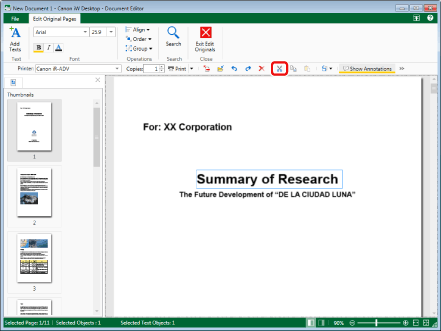
Click (Cut) on the toolbar.
(Cut) on the toolbar.Or, right-click and select [Cut].
3.
Paste the cut object, as necessary.
For details on pasting operations, see the following.
Pasting Objects
This section describes how to paste objects.
1.
Click (Paste) on the toolbar.
(Paste) on the toolbar.Or, right-click and select [Paste].
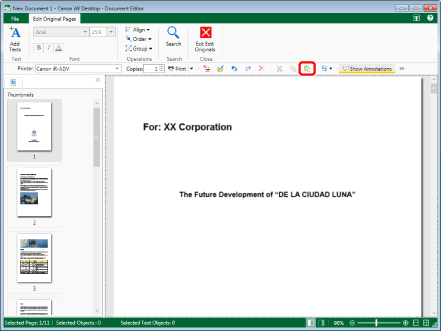
The objects are pasted.
|
NOTE
|
|
If tool buttons are not displayed on the toolbar of Desktop Editor, see the following to display them.
If the original objects are not in the same position, the copied/cut objects are pasted in the same position as the original objects.
If the original objects are in the same position, the copied/cut objects are pasted in a position 15 pixels to the right and 15 pixels down from the original objects.
Objects that protrude outside the page area are placed in the center of the page.
|