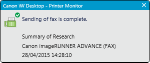
Sending/Receiving Faxes
Sending Faxes
In Desktop, you can send a fax by selecting a document and clicking the fax output button, or dragging and dropping the document onto the fax output button. You can also send faxes from the Quick Printing Tool and Desktop Editor.
This section describes how to send multiple documents together.
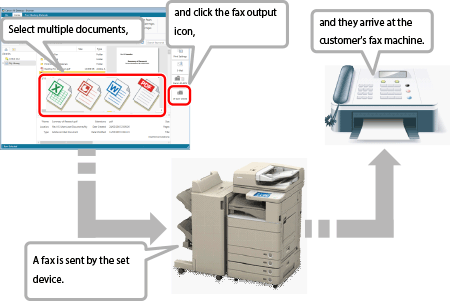
Sending Multiple Documents Together
You can bind multiple documents into a single document, and fax the document.
|
NOTE
|
|
To fax multiple documents as a single document, set [Combine selected documents into one with Editor to send fax] in the fax output button settings. For information on how to set these settings, see the following.
|
1.
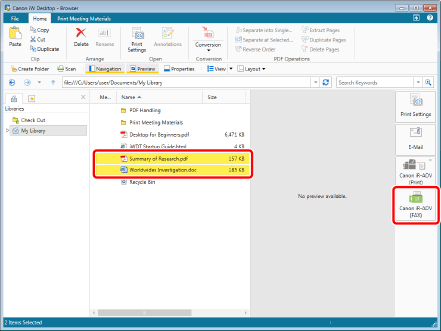
Select the documents to fax and click the fax output button on the output bar.
|
NOTE
|
|
If [Check preview with Editor when sending fax] was selected in the fax output button settings, Desktop Editor starts.
|
2.
If a confirmation message appears, click [OK].
3.
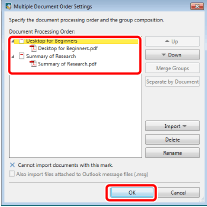
Change the order to send and then click [OK].
4.
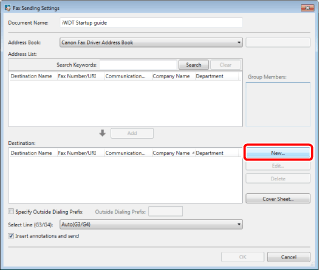
Click [New].
5.
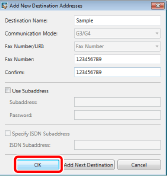
Enter the destination information and click [OK].
6.
Confirm that the destination has been added to [Destination] and click [OK].
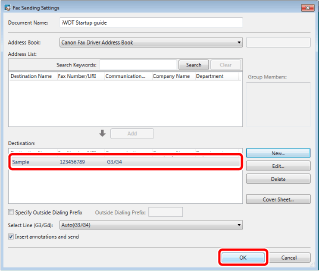
Click [OK] to start sending the fax.
Sending Faxes Using the Address Book of a Device
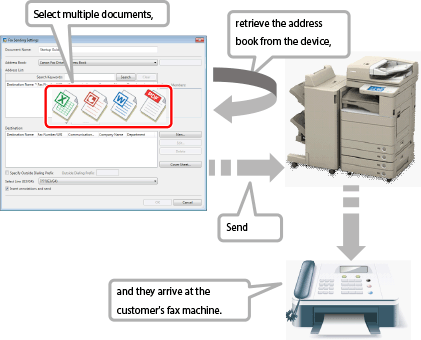
This section describes how to send faxes using the address book of a device.
|
NOTE
|
|
To use the shared address book of a device, it is necessary to install the "Desktop Communicator" MEAP application included in iW Desktop, to the device.
|
1.
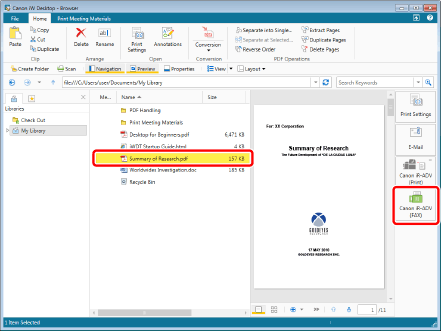
Select the files and click the fax output button on the output bar.
2.
Select [Device Address Book] from [Address Book] and then click [Acquire Address Book].

|
NOTE
|
|
[Acquire Address Book] can be clicked when [Device Address Book] is selected in the address list.
|
3.
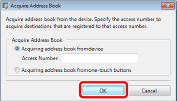
Select where to retrieve the address book and click [OK].
4.
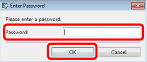
Enter the password and click [OK].
|
NOTE
|
|
The default password is "DtComm7654321." If the password has been changed, contact the device's administrator.
|
5.
Select the destination in [Address List] and click [Add] > [OK].
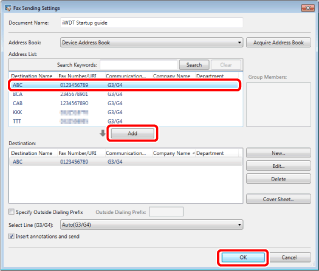
Click [OK] to start sending the fax.
|
NOTE
|
|
Select a destination and then click [Add] to add the selected destination to [Destination].
|
Sent Fax Logs
1.
Right-click  (Printer Monitor) in the taskbar, and select [Display Sent Fax Log List].
(Printer Monitor) in the taskbar, and select [Display Sent Fax Log List].
2.
The log list screen is displayed.

Receiving Faxes
When a fax is received, the fax received notification icon and the Printer Monitor icon are displayed alternately in the taskbar.

Also, the fax received notification message is displayed on a pop-up window.