Registering a Network Drive
This section describes how to register folders in a network drive.
In this example, a folder in an Advanced Box is registered in a network drive.
Using Network Drive Mapping to Register to a Network Drive (For Windows 7/Windows 8/Windows 8.1)
1.
Right-click [Computer] in the [Start] menu, and select [Map network drive].
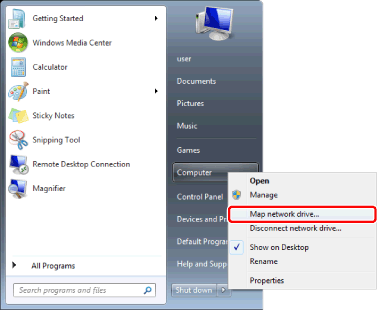
The [Map Network Drive] dialog box is displayed.
|
NOTE
|
|
For Windows 8/Windows 8.1, right-click [Computer] on the [Desktop] screen ([PC] for Windows 8.1), and select [Map Network Drive].
|
2.
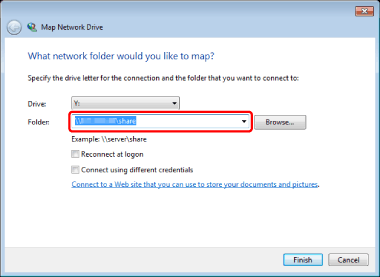
Specify the folder of an Advanced Box in [Folder].
|
NOTE
|
|
You can also click [Browse] to specify the folder of an Advanced Box.
For an Advanced Box, specify the folder for which you have the access permission.
|
3.
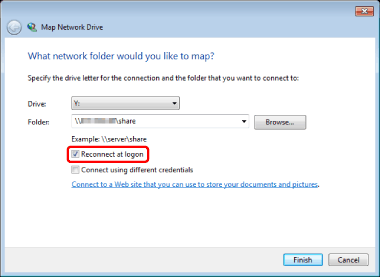
Select the [Reconnect at logon] check box.
4.
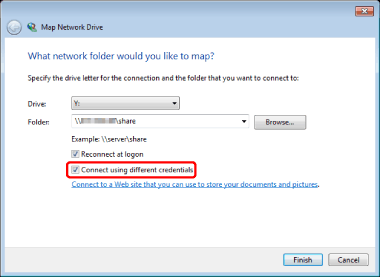
To connect as a different user, select [Connect using different credentials] check box.
5.
Click [Finish].
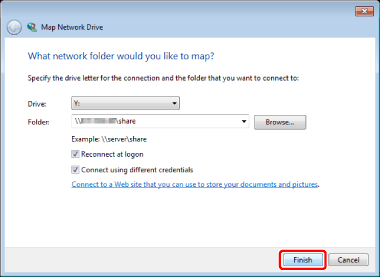
The [Windows Security] dialog box is displayed.
6.
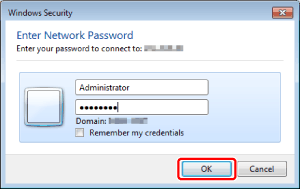
Enter the user name and password of the user who accesses the Advanced Box and click [OK].
|
NOTE
|
|
If you do not know your user name and password, consult the system administrator.
You can save your user name and password by selecting the [Remember my credentials] check box.
|
Registering to a Network Drive Using the Wizard (For Windows Vista)
1.
Right-click [Computer] in Windows Explorer and select [Add a Network Location].
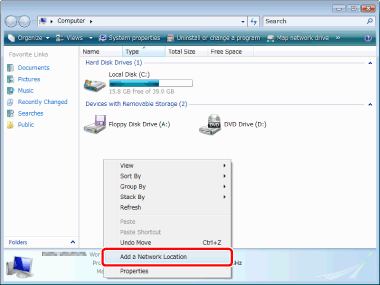
The [Add Network Location] dialog box is displayed.
2.
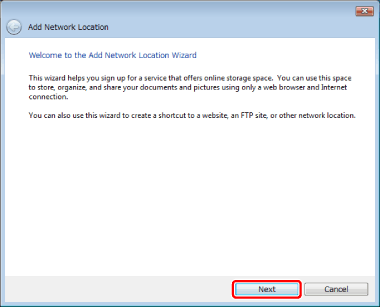
Click [Next].
3.
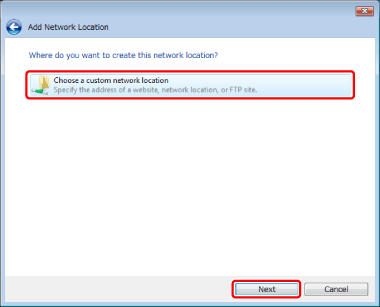
Select [Choose a custom network location] and click [Next].
4.
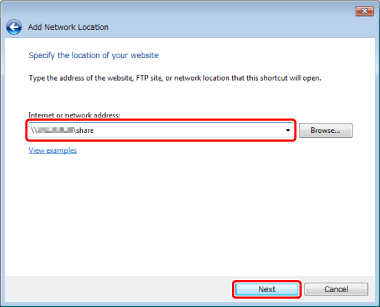
Specify a folder in an Advanced Box in [Internet or network address], and click [Next].
|
NOTE
|
|
You can also click [Browse] to specify the folder of an Advanced Box.
For an Advanced Box, specify the folder for which you have the access permission.
|
5.
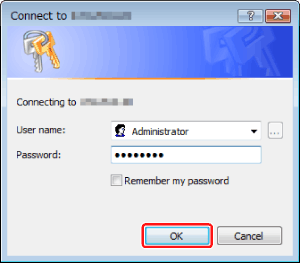
Enter the user name and password of the user who accesses the Advanced Box and click [OK].
|
NOTE
|
|
If you do not know your user name and password, consult the system administrator.
You can save your user name and password by selecting the [Remember my password] check box.
|
6.
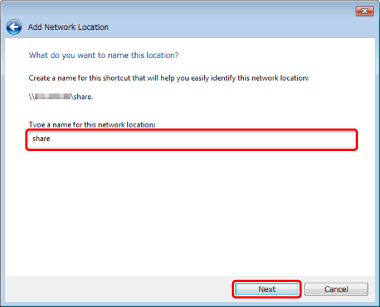
Enter the name of folder to be referenced for connecting in [Type a name for this network location], and click [Next].
7.
Click [Finish].