Specifying the Device Preferences Using User Authentication
This section describes the procedure for specifying the preferences of the device using User Authentication.
Setting the User Authentication Method
Specify the user authentication method. For more information, see the instruction manuals of the device.
Setting the Default Role for Registered Users
If you are using local device authentication, select the base role to apply to users that are not associated with a role (users that do not have a role name written in their user information) when they log in to a device.
For more information on the usage restrictions for each base role, see "Regarding Base Roles and Custom Roles."
|
IMPORTANT
|
|
Since application restrictions and button restrictions cannot be set for base roles, application restrictions and button restrictions cannot be set for users that have the role specified in [Set Default Role] applied to them. It is necessary to create a suitable custom role and associate that role with users that you want to restrict applications and buttons for.
|
1.
Log in to User Authentication.
For more information, see "Logging in to User Authentication."
2.
Click [Settings/Registration] → [User Management] → [Authentication Management] → [Preferences].
3.
Click [Edit].
4.
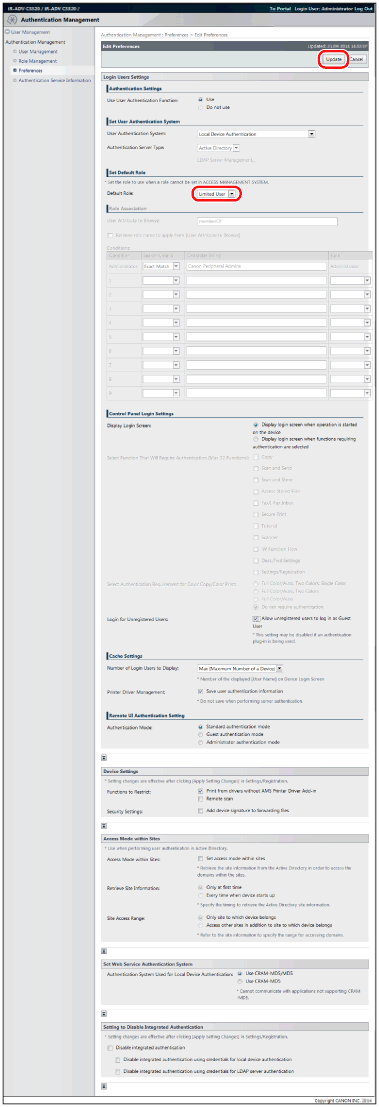
In [Default Role] in [Set Default Role], select a role → click [Update].
If you are using the local device authentication method, roles selected here are assigned to users who do not have role names written in their user information.
When using server authentication method, the role selected here is applied to all users authenticated based on the user information registered in the server that do not match the role association conditions.
|
IMPORTANT
|
|
The [Set Default Role] setting is enabled after the device is restarted. For information on restarting the device, see the instruction manuals of the device.
|
Role Association
When using server authentication, set the role to apply to server authentication users in [Role Association]. For more information, see the instruction manuals of the device.
Setting the Login Method
Select the login method for SSO-H. There are two types of login methods; "Device Level Log-in" and "Function Level Log-in." For more information, see the instruction manuals of the device.
|
IMPORTANT
|
|
If you select Function Level Log-in, take particular care when creating/editing custom roles and editing the guest role so that the restrictions applied to registered users are not more strict than those applied to unregistered users. If the restrictions applied to registered users are stricter than those applied to unregistered users, the number of functions that can be used after logging in will be less than before logging in, which may lead to inappropriate user management.
|
Allowing Unregistered Users to Log In
You can set whether to allow unregistered users to log in to a device.
1.
Log in to User Authentication.
For more information, see "Logging in to User Authentication."
2.
Click [Settings/Registration] → [User Management] → [Authentication Management] → [Preferences].
3.
Click [Edit].
4.
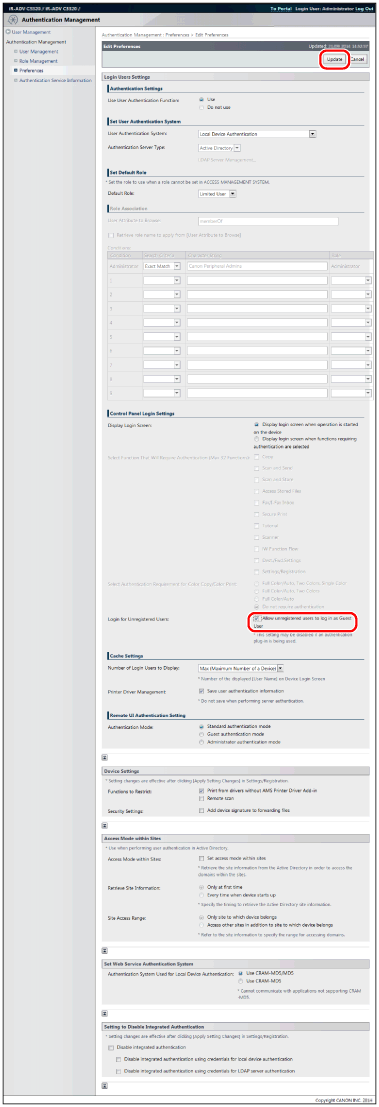
Select [Allow unregistered users to log in as Guest User] in [Login for Unregistered Users] → click [Update].
|
IMPORTANT
|
|
The [Login for Unregistered Users] setting is enabled after the device is restarted. For information on restarting the device, see the instruction manuals included with the device.
|
|
NOTE
|
|
The [GuestUser] role (guest role) can be edited. For more information, see "Editing the [GuestUser] Role (Guest Role)."
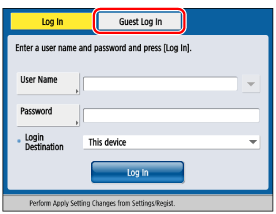
If you select [Allow unregistered users to log in as Guest User] when Device Level Log-in is selected as the login method, a login screen similar to the following is displayed on the touch panel display of the device. When unregistered users log in, they press [Log In (Guest)], without entering a user name and password. The functions that unregistered users can use are set in the usage restriction information of the [GuestUser] role.
 |
Setting the Number of Users to Cache on the Login Screen
Set the number of users to cache on the login screen displayed on the touch panel display when logging in. This enables you to select a user name that has been previously used to log in, to save you having to enter it.
|
NOTE
|
|
For more information, see the instruction manuals of the device.
|
Retaining User Authentication Information with the Printer Driver
You can set whether to allow users to retain the password entered in the AMS Printer Driver Add-in. If you retain the password, it becomes unnecessary to enter a password in the AMS Printer Driver Add-in after the first time.
|
IMPORTANT
|
|
If you do not allow the user authentication information to be retained, [Save password and skip authentication dialog box when printing] in the [Setup User Names and Passwords for Authentication] dialog box of the AMS Printer Driver Add-in becomes disabled, and the password cannot be saved.
|
|
NOTE
|
|
If you are not using the AMS Printer Driver Add-in, it is not necessary to set this item.
|
1.
Log in to User Authentication.
For more information, see "Logging in to User Authentication."
2.
Click [Settings/Registration] → [User Management] → [Authentication Management] → [Preferences].
3.
Click [Edit].
4.
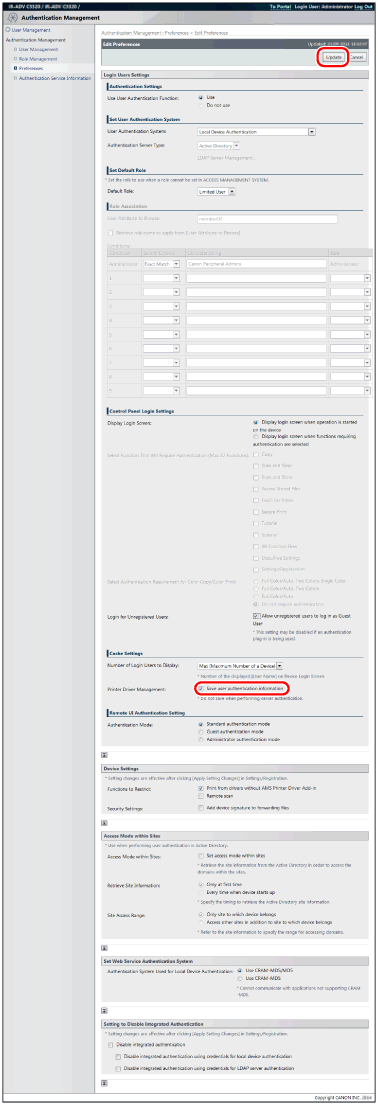
Select [Save user authentication information] in [Printer Driver Management] → click [Update].
|
IMPORTANT
|
|
The [Printer Driver Management] setting is enabled after the device is restarted. For information on restarting the device, see the instruction manuals of the device.
|
Prohibiting the Printing from Drivers without AMS Printer Driver Add-In
You can set whether to restrict the printing of jobs that do not support print restrictions.
|
IMPORTANT
|
|
Direct Printing from the Remote UI is also included in the jobs restricted by the settings in this item. If [Print from drivers without AMS Printer Driver Add-in] in [Functions to Restrict] is selected, you cannot use the Direct Printing from the Remote UI.
If you do not restrict the printing of jobs that do not support print restrictions, you cannot prevent printing from computers in which the AMS Printer Driver Add-in is not installed or from computers in which an unknown user is logged on.
|
|
NOTE
|
|
If you are not using the AMS Printer Driver Add-in, it is not necessary to set this item.
|
1.
Log in to User Authentication.
For more information, see "Logging in to User Authentication."
2.
Click [Settings/Registration] → [User Management] → [Authentication Management] → [Preferences].
3.
Click [Edit].
4.
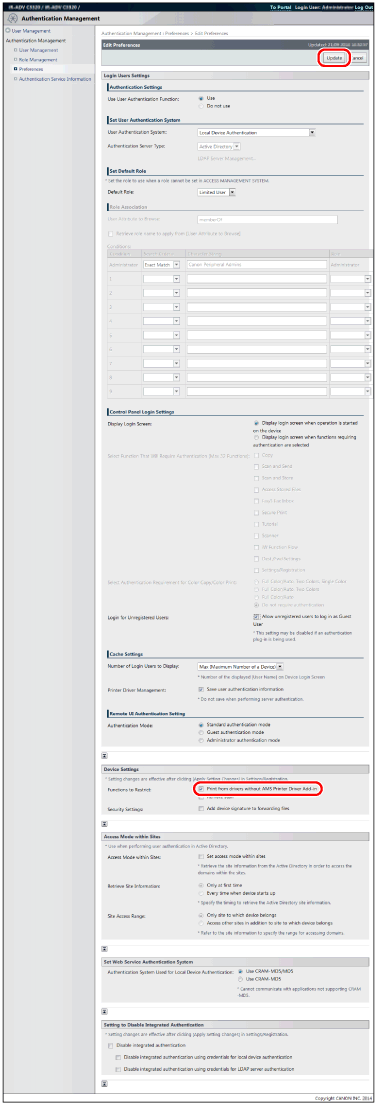
Select [Print from drivers without AMS Printer Driver Add-in] in [Functions to Restrict] → click [Update].
|
IMPORTANT
|
|
The [Functions to Restrict] setting is enabled after the device is restarted. For information on restarting the device, see the instruction manuals of the device. (If an initialization completion screen is displayed on the touch panel display after the device is restarted, follow the instructions on the screen to restart the device.)
|
|
NOTE
|
|
When [Print from drivers without AMS Printer Driver Add-in] is selected, a security check is automatically performed when printing from printer drivers in which the AMS Printer Driver Add-in is installed. If a problem is found, printing will be canceled.
|
Setting Usage Restrictions for Remote Printing/Remote Copying/Remote Scanning
Set usage restrictions for remote printing/remote copying/remote scanning.
|
NOTE
|
|
For more information, see the instruction manuals of the device.
[Cascade copy] is not displayed on devices which do not support the remote copy function.
|
|
IMPORTANT
|
|
Restricted devices that support AMS cannot be used as the source device for remote copying.
|
Adding a Device Signature When Forwarding Files
You can set whether to add a device signature when forwarding files from a device.
|
NOTE
|
|
This function is for adding a device signature to files forward with the optional Device Signature PDF Kit. For more information, see the instruction manuals of the device. (This function cannot be used unless the required options are installed.)
|
1.
Log in to User Authentication.
For more information, see "Logging in to User Authentication."
2.
Click [Settings/Registration] → [User Management] → [Authentication Management] → [Preferences].
3.
Click [Edit].
4.
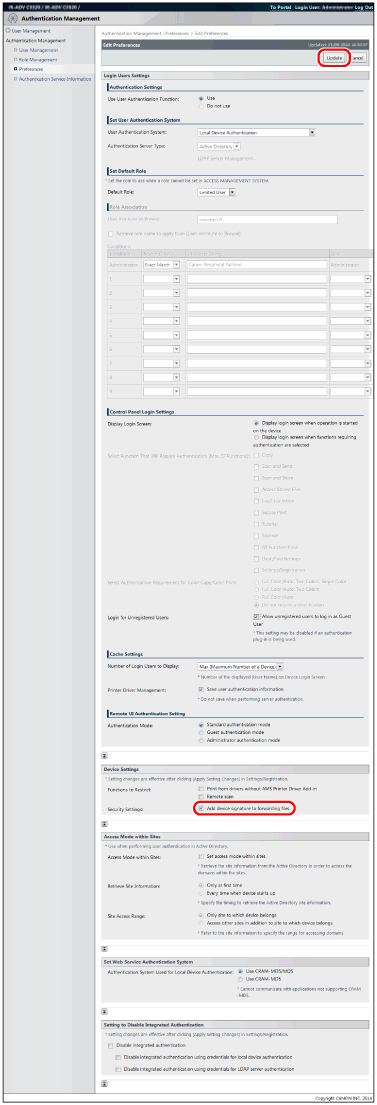
Select [Add device signature to forwarding files] in [Security Settings] → click [Update].
|
IMPORTANT
|
|
The [Security Settings] setting is enabled after the device is restarted. For information on restarting the device, see the instruction manuals of the device.
|